Organise pages
Organise PDF pages: merge, split, reorder and rotate
By DeckleUpdated
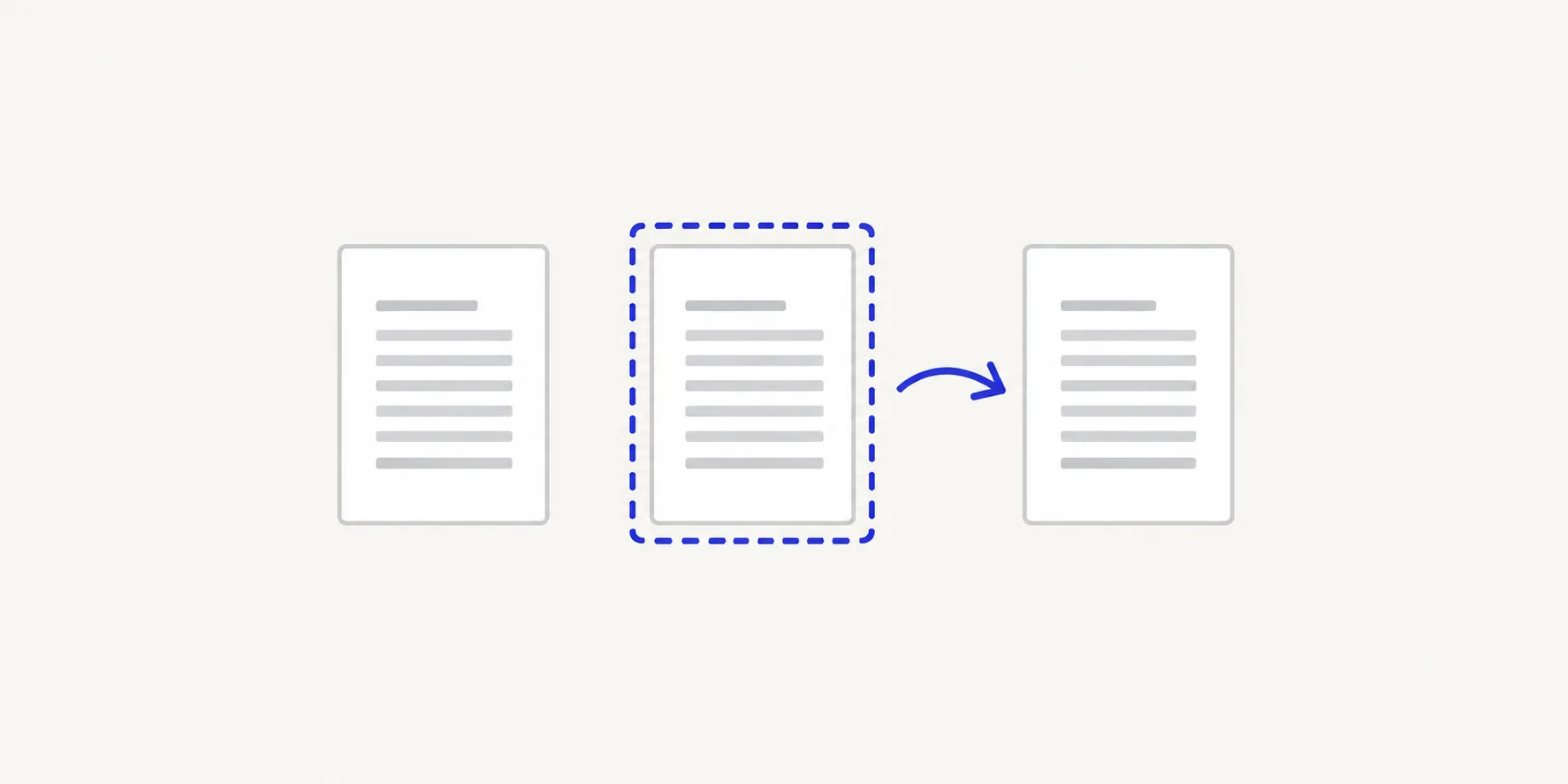
To organise the pages of a PDF, pick the tool by the result you want. Use Organize PDF pages to reorder, rotate, duplicate or remove pages inside one file, Merge PDFs to join several files into one, Split PDF to cut one file into several, and Rotate PDF to turn pages and save the new orientation. Every tool creates a new PDF and leaves your original file as it was. The guides below cover each job step by step.
Find the guide for your problem
| You want to | Guide |
|---|---|
| Join several PDFs into one, in a set order | How to merge PDF files in the right order |
| Add scanned pages or photos to a PDF | How to add scanned pages to a PDF |
| Put pages from another file in the middle of a PDF | How to insert pages into a PDF |
| Swap a page for a corrected or signed version | How to replace a page in a PDF |
| Cut a PDF into parts by page number | How to split a PDF by page range |
| Split a PDF into equal chunks | How to split a PDF every few pages |
| Save every page as its own file | How to split a PDF into single pages |
| Take a few pages out into a new file | How to extract pages from a PDF |
| Remove blank or unwanted pages | How to delete pages from a PDF |
| Change the order of pages | How to reorder pages in a PDF |
| Move an appendix after the main text | How to move an appendix to the end of a PDF |
| Repeat a page, such as a form or divider | How to duplicate a page in a PDF |
| Turn pages so they stay the right way up | How to rotate a PDF and save it permanently |
| Turn one sideways page without the others | How to rotate one page in a PDF |
| Fix a scan packet with mixed orientations | How to fix sideways pages in a scan packet |
| Choose between merge, split, extract and delete | Which PDF page tool do you need? |
When something looks wrong
| Problem | Guide |
|---|---|
| Files in a merged PDF are in the wrong order | Merged PDF pages in the wrong order |
| A merged PDF has more or fewer pages than expected | Merged PDF page count is wrong |
| A split file has one page too many or too few | Split range off by one |
| A page ended up in the wrong place | Why a PDF page moved to the wrong place |
| A rotation reverts when you reopen the file | Rotate page vs rotate view |
| A protected PDF can't be merged | Merge a password-protected PDF |
| Page 5 in the viewer isn't the page printed "5" | PDF page position versus printed number |
Which tool does what
| Tool | Works on | Typical jobs |
|---|---|---|
| Organize PDF pages | One PDF | Reorder, duplicate, turn and remove pages in one pass, then Save pages |
| Merge PDFs | Two or more PDFs | Combine whole files in the order of the list |
| Split PDF | One PDF | Split points, one file per page, fixed-size chunks or page ranges |
| Rotate PDF | One PDF | Turn all pages or single pages and save the orientation |
Organize PDF pages and Rotate PDF overlap on rotation. Use Rotate PDF when turning pages is the only change; use Organize PDF pages when you also need to move or remove pages, so you save once.
Some jobs need two tools in a row. To put a scan in the middle of a report, split the report where the scan belongs, then merge the parts and the scan in order. To send one chapter, extract it with Split PDF. To remove pages from several files and combine them, clean each file in Organize PDF pages first, then merge; see remove pages before merging.
Use page positions, not printed numbers
Every Deckle tool counts pages by their position in the file, starting at 1. The number printed in a page's footer is part of its content and can differ: a cover and a contents page put printed page 1 at position 3. Find the page in the thumbnails and use its position when you enter a range or a target position.
None of these tools rewrite printed numbers, headers or cross-references. After moving or removing pages, a footer that said "12" still says "12". If the document has bookmarks, check them after page changes.
Tips
- Do the page edits before you merge. Removing a blank page or turning a scan is easier in one source file than in a long combined packet.
- Check the result screen. It states what was done, such as how many pages were combined or how many were turned, so a missed page is easy to spot.
- Keep the original. Deckle never overwrites it, so you can always start again from the source.
- Unlock protected files you're allowed to open first. Use Unlock PDF with the password you were given, then organise the unlocked copy.
Frequently asked questions
Do I need to install anything to organise PDF pages?
No. Deckle runs in your browser, and your files are processed on your device rather than uploaded.
Will organising pages reduce the quality of my PDF?
No. Moving, merging, splitting and rotating copy pages into a new file as they are. Images are not re-compressed and text stays selectable.
Can I undo changes?
Yes, before you save. Organize PDF pages and Rotate PDF have Undo, Redo and Reset pages. Your original file is never changed, so after saving you can open it again and start over.
Can I crop pages or put several pages on one sheet?
Not with these tools. They work with whole pages: they move, copy, turn, remove and combine them, but they don't change a page's visible area or place several pages on one sheet.
Related tools
- Organize PDF pages to reorder, rotate, duplicate or remove pages
- Merge PDFs to combine files in order
- Split PDF to cut a PDF into separate files
- Rotate PDF to turn pages and save the orientation