Organise pages
How to split a PDF every few pages
By DeckleUpdated
To split a PDF every few pages, open Split PDF, choose Fixed-size chunks under How to split it, type the number of pages each file should have in Pages per file, then choose the action button, such as Create 5 PDFs. Deckle cuts the document into files of that length from the first page onwards; if the pages don't divide evenly, the last file is shorter. The original PDF stays as it was.
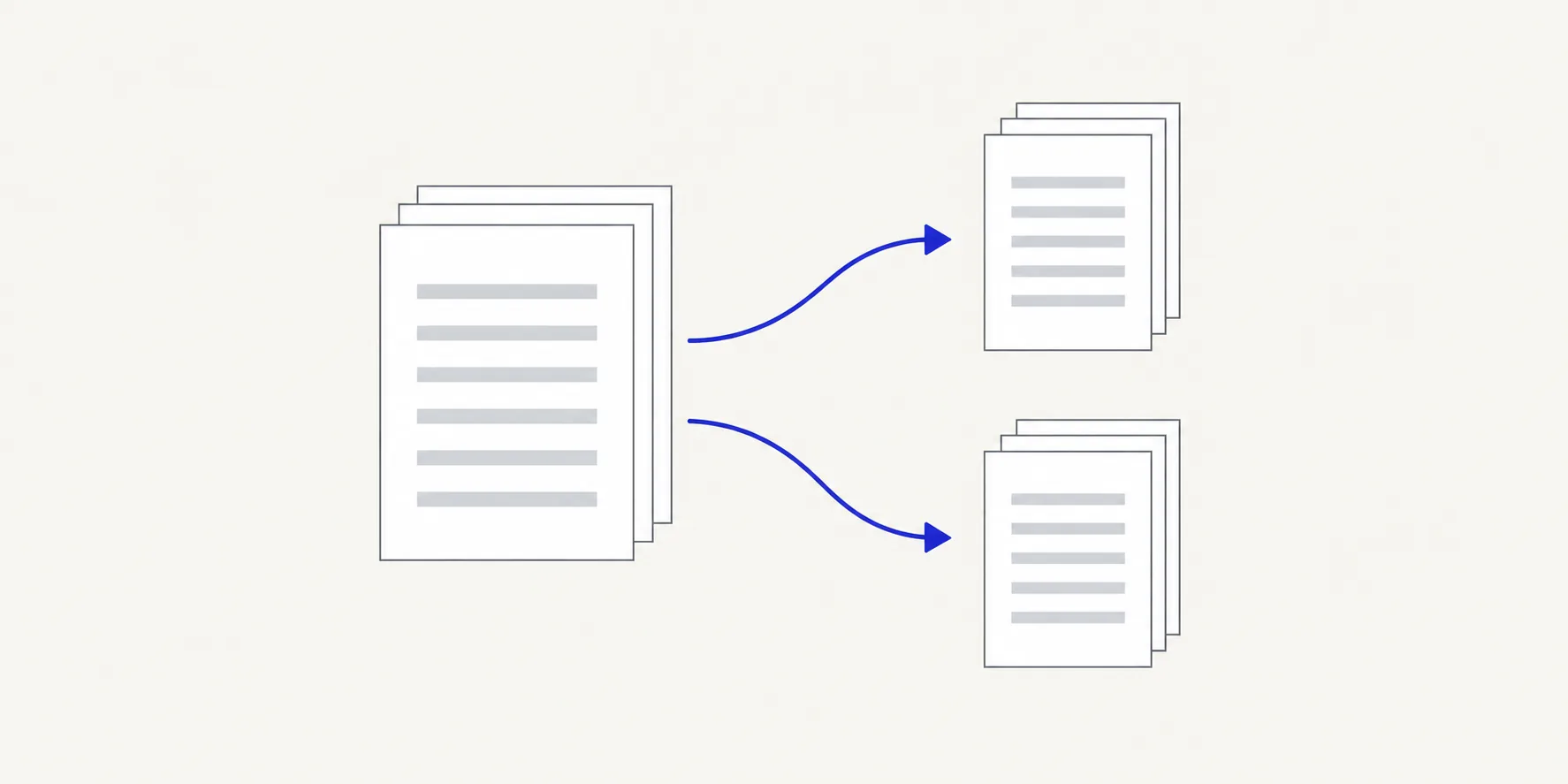
How to split a PDF every N pages with Deckle
- Open Split PDF and choose your PDF, or drop it onto the page.
- Under How to split it, choose Fixed-size chunks.
- In Pages per file, enter how many pages each file should have. It starts at 2.
- Read the Planned files list. Each row shows the source pages a file takes, such as "Pages 1–4 · 4 pages".
- Check the last row. It holds whatever is left over and may be shorter than the rest.
- Choose the action button, which shows the number of files, such as Create 5 PDFs.
- Choose Download all 5 as a zip, or select one file and choose Download selected PDF.
The result screen tells you how many PDFs were made and from how many pages. If Pages per file is empty or not a whole number, the button stays disabled and says "Enter a whole number of pages per file, at least 1."
Work out the chunk size
Choose the size from what one "document" is in your file:
| The PDF contains | Pages per file | A 40-page PDF gives |
|---|---|---|
| Double-sided forms scanned front and back | 2 | 20 files |
| Four-page application forms | 4 | 10 files |
| Weekly timesheets, five days to a file | 5 | 8 files |
| Batches of 10 pages for a portal limit | 10 | 4 files |
To find the number of files, divide the page count by the chunk size and round up. A 43-page PDF split every 10 pages gives five files: four of 10 pages and one of 3 (pages 41–43).
When the last file comes out short
A short last file is correct when the document simply doesn't divide evenly. It is a warning sign when every file should be the same length, such as a stack of two-page forms. If 39 pages split every 2 leave a one-page file at the end, one form is missing a page, or an extra page sits somewhere in the scan, and every file after that point is offset by one.
Find it before you split:
- Look for a blank page, a cover sheet or a separator page in the source.
- Remove it in Organize PDF pages, save, and split the cleaned copy. See how to delete pages from a PDF.
- If a page is missing rather than extra, fixed-size chunks can't line up the forms. Split with Page ranges I choose instead, giving each form its own range.
Uneven documents
Fixed-size chunks only work when every document in the file has the same length. A batch of invoices where one runs to three pages and the rest to one needs a different mode:
- Choose split points lets you click the scissors between pages wherever a new document starts. Good when you can see the breaks in the thumbnails.
- Page ranges I choose lets you type each document's pages. Good when you have a list.
How to split a PDF by page range covers both, and why a split didn't give the files you expected explains how the modes differ.
Tips
- Set the size to 1 for single pages. It gives the same result as One file per page; see how to split a PDF into single pages.
- Check one file from the middle. If the first and last files look right but the middle is off, an extra page has shifted everything after it.
- Fix rotation before you split. Turning sideways pages once in Rotate PDF is quicker than fixing each small file afterwards.
- Rename files after download. Deckle numbers the files in order, such as
forms (1).pdftoforms (20).pdf, which match the order of the chunks in the source.
Other ways to split a PDF every few pages
- Adobe Acrobat. In the paid desktop app, choose All tools > Organize pages, then Split, and set Split by to Number of pages. Adobe describes the free Acrobat Reader as a viewer and lists editing and organising PDFs under its paid plans.
- Preview on a Mac. Apple's Preview help describes making a new PDF by dragging thumbnails from the sidebar to the desktop, but no option to split by page count, so you would drag each group out by hand.
Frequently asked questions
Can I split a PDF into equal parts, such as two halves?
Yes. Divide the page count by the number of parts and use that as Pages per file. A 30-page PDF split every 15 pages gives two halves.
Can the chunks start somewhere other than page 1?
No. Fixed-size chunks always start at the first page. Remove the pages before your starting point in Organize PDF pages first, or use Page ranges I choose.
Is there a limit on how many files I can make?
There is no fixed limit, but Deckle warns you when a plan reaches 50 or more files, because the run takes longer and the ZIP can be large.
Does splitting change the original PDF?
No. Split PDF creates new files and leaves the source untouched.
Related tools
- Split PDF for fixed-size chunks, ranges and single pages
- Organize PDF pages to remove separator or blank pages first
- Merge PDFs to rejoin chunks in a different grouping