Organise pages
How to split a PDF by page range
By DeckleUpdated
To split a PDF by page range, open Split PDF, set How to split it to Page ranges I choose, then enter a From page and To page for each file you want. Choose the button that creates them, such as Create 3 PDFs, to get one PDF per range. Both ends of a range count, so pages 1 to 5 make a five-page file, and the original PDF is not changed.
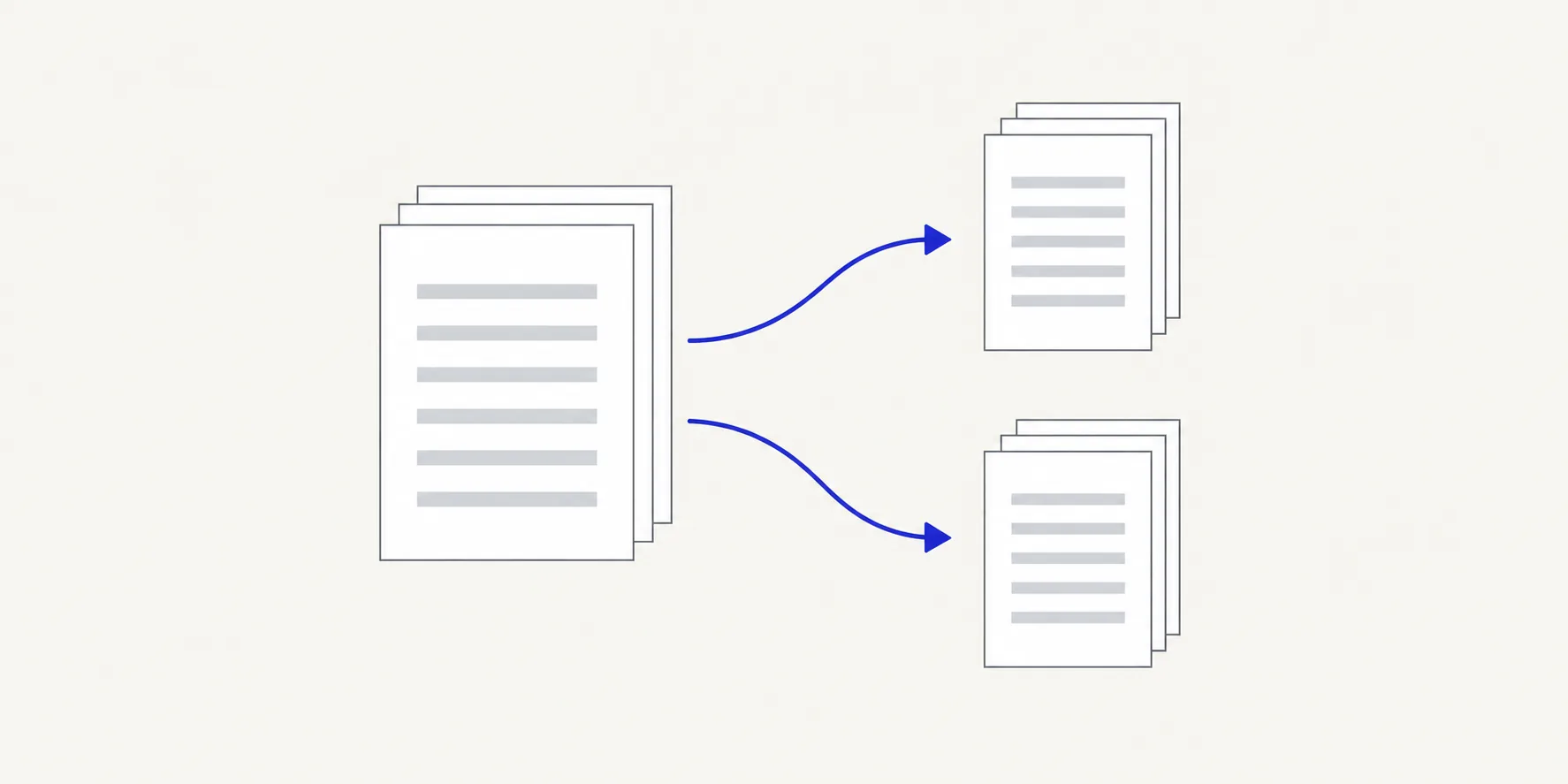
How to split a PDF by page range
- Open Split PDF and choose your PDF, or drop it onto the page.
- Under How to split it, choose Page ranges I choose. The tool opens on Choose split points, so switch modes before you type.
- Enter the first range in From page and To page, for example 1 and 4.
- Choose Add range for each extra file, and enter its pages.
- Read the planned files list. It shows each file's page count and which source pages it takes, and it names any pages that are left out.
- Choose the action button, which shows the number of files, such as Create 3 PDFs.
- Download the files one by one, or all of them as a ZIP.
The result screen tells you how many PDFs were made and from how many pages, so a missing range is easy to spot.
Work out the ranges before you start
Use the page positions in the file, not the numbers printed on the pages. A report with a cover and two contents pages has printed page 1 at PDF page 4. Open the PDF in a viewer, find the first and last page of each section, and write the positions down.
Example: a 24-page report has front matter on pages 1–4, the main text on 5–18 and an appendix on 19–24. Three ranges, 1–4, 5–18 and 19–24, cover every page exactly once. If you only need the main text, enter just 5–18; pages 1–4 and 19–24 are listed as left out, and no file is made for them.
Gaps and overlaps
Ranges don't have to cover the whole document, and they may overlap. The planned files list tells you when either happens.
| Ranges | What you get |
|---|---|
1–5, then 6–12 |
Two files, no page missing or repeated |
1–5, then 5–12 |
Page 5 appears in both files |
1–5, then 7–12 |
Page 6 is left out |
5–12 only |
One file with pages 5 to 12 |
Overlap is useful when two readers both need the same summary page. A gap is useful when you want to leave out a section. If neither was intended, fix the numbers before you create the files.
Other ways to split in Deckle
Page ranges are one of four modes in Split PDF. Pick the one that matches the job:
- Choose split points: click the scissors between two pages to cut the document there. Good for splitting at chapter breaks you can see.
- One file per page: makes a numbered PDF for every page. See how to split a PDF into single pages.
- Fixed-size chunks: set Pages per file, for example every 10 pages. The last file may be shorter.
- Page ranges I choose: one file per range, as above.
If you want one new PDF made from several scattered pages, such as pages 2, 7 and 9, splitting gives you separate files. Extract pages from a PDF shows how to keep them together instead.
Tips
- Check the first and last page of every file. Off-by-one mistakes are the most common split error; split range off by one explains why they happen.
- Add up the page counts. If your ranges should cover the whole document, the totals of the files should equal the source page count.
- Use Undo rather than starting again. Undo and Redo step through your range changes, and Reset split options clears them.
- Rename files after download if the recipient needs meaningful names, such as
report-appendix.pdf.
Frequently asked questions
Does splitting change the original PDF?
No. Split PDF creates new files and leaves the source untouched.
Can a page appear in more than one file?
Yes. Overlapping ranges repeat the shared pages, and the tool tells you how many pages are duplicated across files.
Can I split a PDF into two files?
Yes. Enter two ranges, such as 1–10 and 11–20, or use Choose split points, remove the split it starts with after page 3, and add one after page 10.
Why is the button disabled?
Each range needs whole page numbers within the document, and From page cannot be higher than To page. The message under the range tells you which value to fix.
Related tools
- Split PDF for ranges, single pages, chunks and split points
- Merge PDFs to join the files back together in a new order
- Organize PDF pages to remove or reorder pages inside one PDF