Organise pages
Why a split PDF has one page too many or too few
By DeckleUpdated
A split PDF usually has one page too many or too few for one of two reasons: the range was entered from the numbers printed on the pages instead of their positions in the file, or the count forgot that both ends of a range are included. To fix it, find the first and last page's position in the file, enter those in Split PDF, and check that the planned page count equals last minus first plus one before you choose Create 1 PDF.
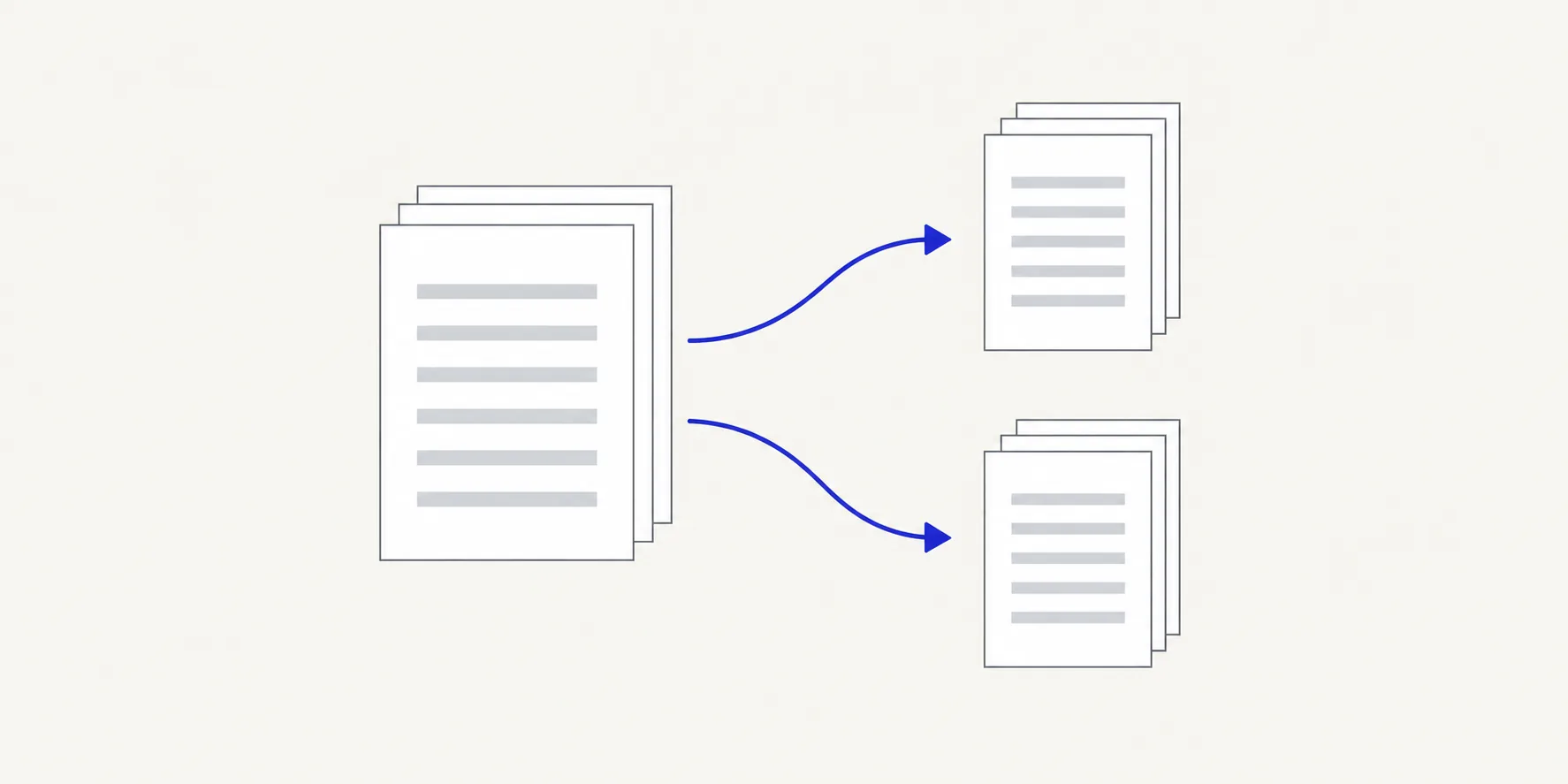
How to fix an off-by-one split with Deckle
- Open the source PDF in a viewer and find the page you want first. Note the position the viewer shows (for example "6 of 40"), not the number in the footer.
- Do the same for the page you want last.
- Open Split PDF and choose the same source PDF, not the split file you already made.
- Under How to split it, choose Page ranges I choose and enter the two positions in From page and To page.
- Check the Planned files list. The count should be last minus first plus one: 6 to 13 is eight pages.
- Select the planned file to preview it, and check its first and last page.
- Choose Create 1 PDF (or Create 3 PDFs for three ranges) and download the corrected file.
Your earlier split file and the source are both left as they were, so you can compare them side by side.
Cause 1: printed numbers instead of positions
Deckle counts pages from the first page of the file, whatever is printed on them. Front matter is the usual culprit:
| What comes first | Printed page 1 is at position |
|---|---|
| Nothing (body starts on page 1) | 1 |
| A cover | 2 |
| A cover and a contents page | 3 |
| A cover, title page and three pages numbered i–iii | 6 |
Example: a chapter is printed as pages 6–10 in a report with a cover and two contents pages. Entering 6–10 gives you five pages, but they start three pages early and finish before the chapter's end. Add three to each number: the chapter is at positions 9–13. Same page count, different pages.
If your split starts too early and ends too early by the same amount, this is the cause. PDF page position vs printed page number covers how to map one to the other.
Cause 2: miscounting an inclusive range
Both ends of a range count. The number of pages is not last minus first, it is last minus first plus one.
8–12contains 8, 9, 10, 11 and 12: five pages, not four.5–5contains one page.- Two ranges that should meet,
1–5and5–10, both include page 5.
That last case causes a page to appear twice. When ranges overlap, the Planned files panel says so ("Overlapping ranges duplicate 1 page across files"). If the ranges leave a gap, as 1–5 and 7–10 do, it lists page 6 as left out. Read those notes before you create the files: they are the quickest way to catch a boundary mistake.
Cause 3: the section ends on a part-filled page
A section that finishes half-way down a page still owns that page, even when the next heading starts below it. If your extract cuts off the last few lines of a chapter, extend To page by one. If the next section shares the page, you'll need it in both files, which overlapping ranges allow.
Blank pages cause the reverse surprise. A scanned or print-ready document often has a blank back between chapters. It is a real page with a position, so a range that includes it gives you an extra page that looks empty.
Tips
- Check the page either side. Before you type a range, look at the page just before the first page and just after the last. Each should belong to the neighbouring section.
- Add up the counts. If your ranges should cover the whole document once, their page counts should total the source's page count, shown next to the tool name.
- Split from the source, not a split file. Re-splitting a part shifts every position again and is easy to get wrong.
- Use split points for visible breaks. If you can see where each section starts, Choose split points lets you click the scissors between two pages instead of typing numbers.
Frequently asked questions
Does Split PDF count the cover as page 1?
Yes. Every page in the file has a position, starting from 1 at the first page, whether or not anything is printed on it.
Why does my split include a blank page?
The range includes a blank page from the source, often the back of a scanned sheet. Shorten the range by one, or remove the blank page afterwards in Organize PDF pages.
Why is page 5 in both of my files?
Your ranges overlap: one ends on page 5 and the next starts on it. Start the second range on page 6.
Can I split by the printed page numbers instead?
No. Split PDF uses positions in the file. Convert the printed numbers first by adding the number of pages that come before printed page 1.
Related tools
- Split PDF to recreate the file with corrected ranges
- Organize PDF pages to remove a stray page from the split file
- Merge PDFs to add a missing page back in