Organise pages
How to extract pages from a PDF
By DeckleUpdated
To extract pages from a PDF, open Split PDF, choose Page ranges I choose, enter the first and last page you want in From page and To page, then choose Create 1 PDF. You get a new PDF with just those pages, and the original file keeps every page it had. For pages that are not next to each other, such as 2, 7 and 9, use Organize PDF pages instead and remove the pages you don't want.
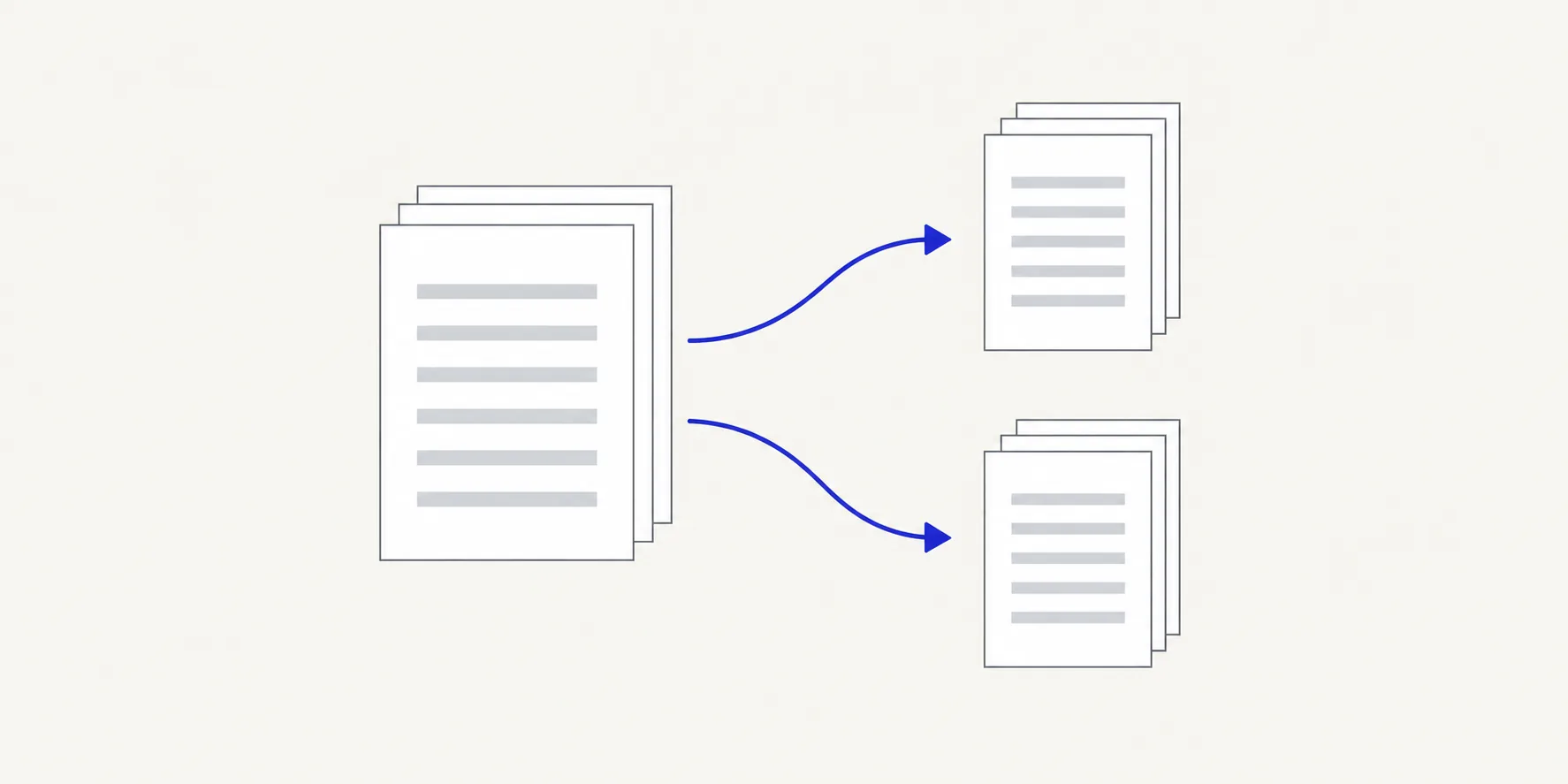
How to extract pages from a PDF with Deckle
- Open Split PDF and choose your PDF, or drop it onto the page.
- Under How to split it, choose Page ranges I choose. The tool opens on Choose split points, so switch modes before you type.
- Enter the first page you want in From page and the last in To page. Both ends count, so 4 and 9 give you six pages.
- Read the Planned files list. It shows the source pages the file takes and its page count, and it names the pages that are left out.
- Choose Create 1 PDF. If a value is wrong, the button stays disabled and the range shows which number to fix.
- Choose Download PDF, open the file and check its first and last page.
The result screen tells you how many PDFs were made and from how many pages, so you can see at a glance that one file came out.
Extract pages that are not next to each other
A page range always takes every page between its two ends. To build one PDF from scattered pages, work the other way round and remove everything you don't need:
- Open Organize PDF pages and choose the same PDF.
- Select the pages you don't want. Tick the checkbox on each thumbnail, or hold Shift, Command or Ctrl while you click.
- Choose the remove button in the toolbar above the grid. Removed pages stay visible but are marked, so you can check what is going.
- Choose Save pages and download the new PDF.
Example: from a 12-page contract you need the signature page (12), the schedule (7) and the summary (2). Remove pages 1, 3–6 and 8–11, and the saved copy has three pages in the order 2, 7, 12. If you want the signature page first, choose Move to start in its ⋯ menu before you save. How to reorder pages in a PDF shows the controls.
Adding a second range in Split PDF does not do this job. Each range becomes its own file, so ranges 2–2, 7–7 and 12–12 give you three one-page PDFs. That is useful when each page goes to a different person, and it is the wrong result when you wanted a single document.
Find the right page numbers
Enter page positions in the file, not the numbers printed on the pages. A report with a cover and a two-page contents section has printed page 1 at PDF page 4. Open the PDF in a viewer, find the first and last page you need, and note the position the viewer shows. PDF page position vs printed page number explains why the two drift apart.
To extract a single page, enter the same number in both fields. An approval page at PDF page 18 is 18 and 18, and the planned file shows one page.
What the extracted PDF keeps
The pages are copied into the new file as they are. Text stays selectable, images keep their resolution, and the printed page numbers on the pages don't change, so an extract of pages 4–9 still shows "4" to "9" in its footers if that is what was printed.
Two things are worth checking when they matter to you:
- Bookmarks and links. Split PDF copies the pages into a new file, so the original's bookmark list doesn't come with them, and a link to a page outside the extract has nowhere to go. See check bookmarks after page changes.
- Digital signatures. A signature applies to the document it was made on. Check its status in the extracted file before you rely on it; signature status after editing a PDF covers what to expect.
Tips
- Keep the original as your master copy. Deckle never changes the source file, so you can extract again later with different pages.
- Rename the download. The file is named after the source with a number, such as
report (1).pdf. A name such asreport-pages-4-9.pdftells the reader what they have. - Use the preview before you create. Select a planned file to see its source pages, and check that the first page is the one you meant and not its neighbour.
- Extract a whole chapter the same way. How to share one section of a PDF walks through finding a chapter's start and end.
Other ways to extract PDF pages
- Preview on a Mac. Show thumbnails in the sidebar, select the pages, then drag them to the desktop to make a new PDF. Check the new file's page order before you send it.
- Adobe Acrobat. In the paid desktop app, choose All tools > Organize pages, then Extract pages. You can tick Delete pages after extracting, or Extract pages as separate files. Adobe describes the free Acrobat Reader as a viewer and lists editing and organising PDFs under its paid plans.
- Print to PDF. Many systems let you print a page range to a new PDF. This can drop links and form fields, so it suits a quick copy rather than a working document.
Frequently asked questions
Does extracting pages remove them from the original PDF?
No. Split PDF and Organize PDF pages both create a new file. The source keeps all of its pages.
Can I extract several separate sections into one PDF?
Not in a single step with Split PDF, because each range becomes its own file. Remove the unwanted pages in Organize PDF pages instead, or extract each section and join them with Merge PDFs.
Can I extract pages from a password-protected PDF?
Create an unlocked copy first with Unlock PDF, using the password you were given, then extract from that copy.
Why is my extract one page short?
The range was probably entered from printed page numbers, or the last page was miscounted. Why a PDF split has one page too many or too few shows how to correct it.
Related tools
- Split PDF to extract a continuous range of pages
- Organize PDF pages to keep scattered pages and remove the rest
- Merge PDFs to join several extracts into one file