Organise pages
How to reorder pages in a PDF
By DeckleUpdated
To reorder pages in a PDF, open Organize PDF pages, drag the page thumbnails into the order you want, then choose Save pages. You can also move a page from its ⋯ menu, including straight to a numbered position. Deckle saves the new order as a separate PDF and leaves the original file as it was.
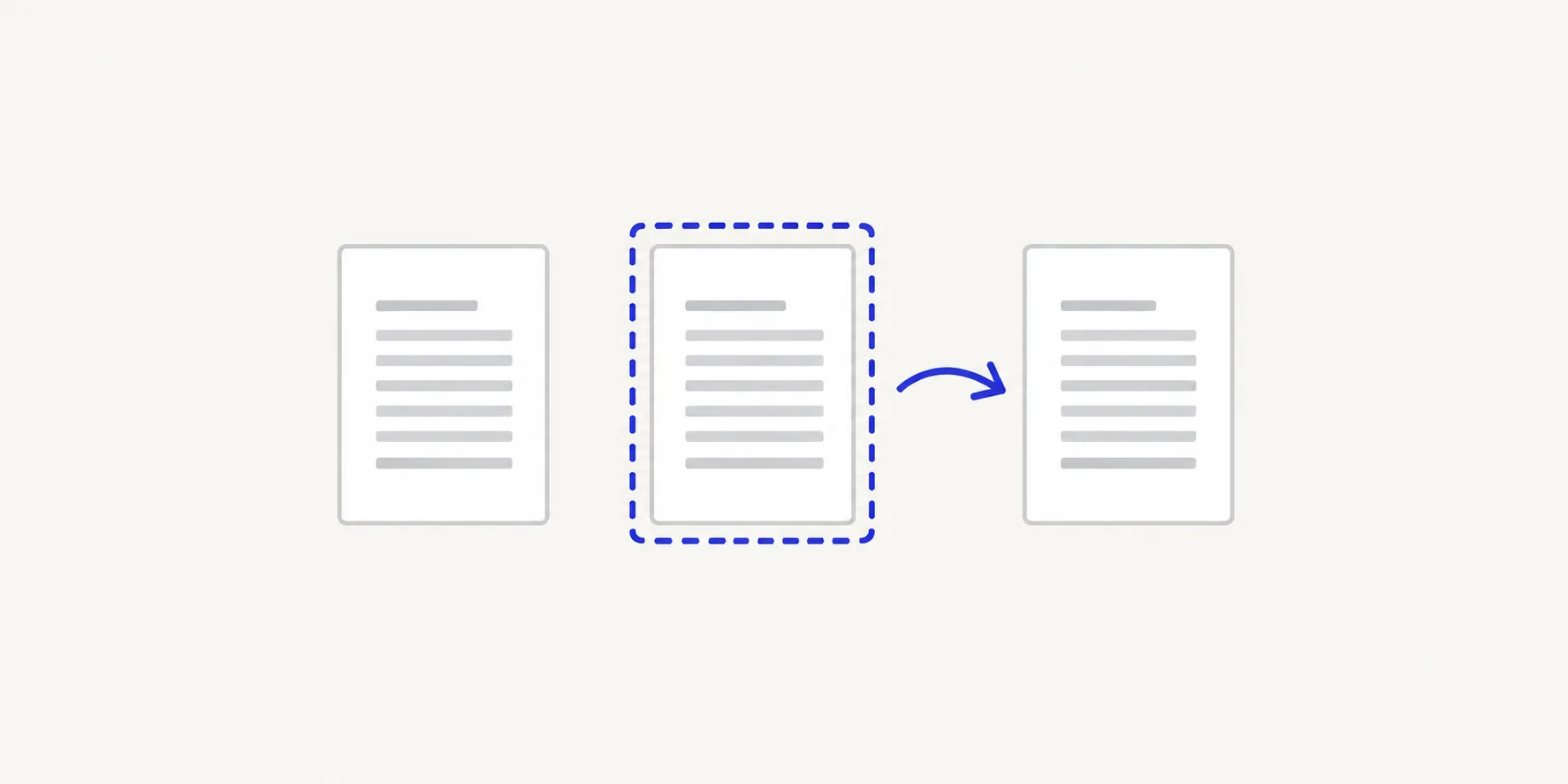
How to rearrange PDF pages with Deckle
- Open Organize PDF pages and choose your PDF, or drop it onto the page. Each page appears as a thumbnail in file order.
- Drag a page by its handle and drop it where it belongs. The other pages shift to make room.
- For a precise move, point at the page, open its ⋯ menu and choose Move earlier, Move later, Move to start, Move to end or Move to position….
- Check the new sequence from the first thumbnail to the last.
- Choose Save pages. The button stays disabled until you have changed something, and says so.
- Download the new PDF and page through it once to confirm the order.
The result screen confirms how many pages are in the new order, which should match the original count unless you also removed or duplicated pages.
Move a page to an exact position
Dragging is quickest for short moves. For a long document, use the position control instead:
- Open the ⋯ menu on the page you want to move.
- Choose Move to position….
- Type the position the page should have in the finished PDF, for example
1to make it the first page. - Choose Move.
This is the easiest way to move a summary from page 40 to page 2 without dragging past dozens of thumbnails.
Move several pages together
To move a block of pages, such as an appendix, select them first: tick the checkbox on each thumbnail, or hold Shift, Command or Ctrl while you click. A toolbar appears above the grid with buttons to move the selected pages earlier, later, to the start or to the end. The pages keep their order relative to each other as they move.
Plan the order before you drag
For anything longer than a few pages, write the target order down first. Use page positions in the file, not the numbers printed on the pages, because front matter shifts the two apart.
Example: a 12-page proposal has the executive summary on pages 10–11 and needs it after the cover. The target order is 1, 10, 11, 2–9, 12. Select pages 10 and 11, move them so they follow page 1, and check that page 12 is still last.
If the pages you need are spread across several files, merge the files first and then reorder, or reorder each file and then merge PDF files in the right order.
Fix mistakes before you save
- Undo and Redo step back and forward through every move.
- Reset pages puts every page back in its original position.
- Nothing changes in your source file. If the saved order is wrong, open the original again and repeat the moves.
Tips
- Do all page edits in one pass. The same screen rotates, duplicates and removes pages, so you can turn a sideways scan and delete a blank page while you reorder. See how to delete pages from a PDF and how to rotate a PDF permanently.
- Read pages at full size. Thumbnails of similar pages look alike. Select a page and switch the page layout to Single page to read it before you move it.
- Expect printed numbers to stay where they were. Reordering doesn't rewrite footers, so a page printed "7" stays "7" in its new position. If the PDF has bookmarks, check them after page changes.
Other ways to reorder PDF pages
- Preview on a Mac. Choose View > Thumbnails and drag pages to their new place. Preview saves changes to the file you opened, so choose File > Duplicate first if you want to keep the original order.
- Adobe Acrobat. In the paid desktop app, choose All tools > Organize pages and drag thumbnails to a new place. Adobe describes the free Acrobat Reader as a viewer and lists editing and organising PDFs under its paid plans.
Frequently asked questions
Can I reorder PDF pages without installing software?
Yes. Organize PDF pages works in your browser, and the PDF is processed on your device rather than uploaded.
Can I copy a page to another position instead of moving it?
Yes. Select the page and choose Duplicate, then move the copy where you need it. The original page stays where it was.
Does reordering pages change the quality of the PDF?
No. Pages are copied into the new file as they are, without re-compressing images or converting text to pictures.
How do I reverse the order of all pages?
There is no single reverse button. Move the last page to the start, then the new last page to position 2, and so on, or use Move to position… for each page in a short document.
Related tools
- Organize PDF pages to reorder, rotate, duplicate or remove pages
- Merge PDFs to combine files in a chosen order
- Split PDF to break a reordered document into parts