Organise pages
How to rotate a PDF and save it permanently
By DeckleUpdated
To rotate a PDF and save it permanently, open Rotate PDF, choose All pages or This page, turn the pages left or right, then choose Rotate PDF and download the result. The rotation is written into the new file, so the pages open the right way up in any PDF reader, on any device. Your original file is not changed.
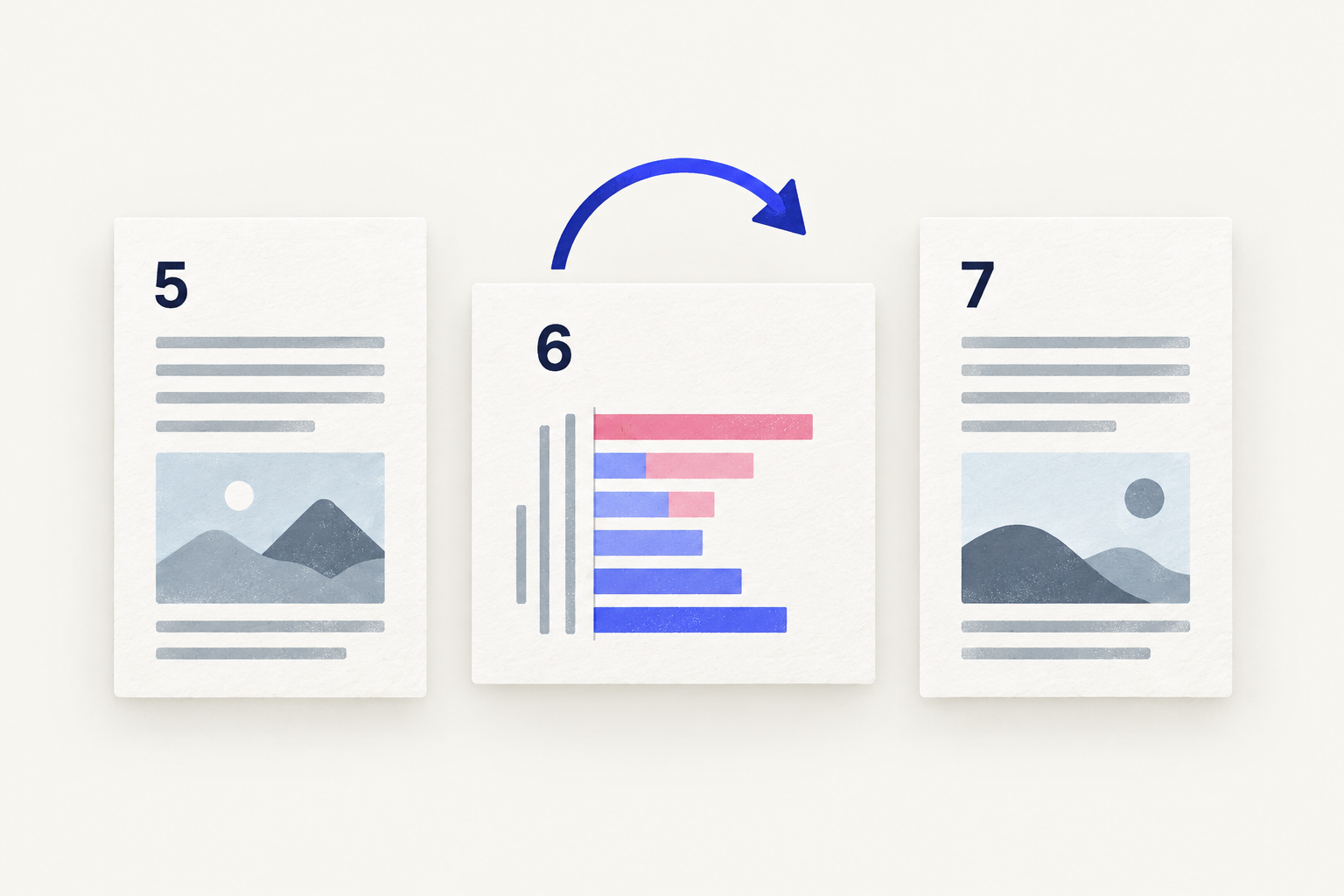
How to rotate PDF pages with Deckle
- Open Rotate PDF and choose your PDF, or drop it onto the page.
- Under Rotation scope, choose All pages to turn the whole document, or This page to turn only the page you have selected.
- Choose Turn left or Turn right. Each click turns the pages a quarter turn; two clicks turn them upside down.
- Repeat for any other pages that need turning. Pages you don't turn keep their current orientation.
- Choose Rotate PDF. Until at least one page is turned, the button stays disabled and says "Turn at least one page first."
- Download the rotated PDF and open it to check.
The result screen tells you how many pages were turned, which is a quick check that you didn't miss one.
Why rotation sometimes doesn't stick
Many PDF readers have a rotate button that only changes how the page is shown on your screen. Close the file, open it again, and the page is sideways once more. In Adobe Acrobat Reader, for example, View > Rotate view changes only the display, and Adobe notes that the change can't be saved.
Deckle changes the page itself. Each turned page gets a new orientation inside the saved PDF, so the page opens correctly for anyone you send it to. If you have rotated a page in a reader and it keeps reverting, open the file in Rotate PDF and save a rotated copy. Rotate view vs rotate page explains the difference in more detail.
If the rotation still seems to go back
When a page you rotated in Deckle looks sideways again, the file you are looking at is usually not the one you saved. Check these in order:
- You reopened the original. Deckle never changes the source file; the rotation is in the new download. Look in your downloads folder for the newer copy.
- The viewer is showing an old copy. A browser tab or preview pane can keep showing the version it loaded first. Close it and open the downloaded file again, or open it in a different PDF app.
- Two files have the same name. Rename the rotated download to something you will recognise, such as
contract-rotated.pdf, before you send it. - The document is signed or restricted. Changing a digitally signed PDF can invalidate its signature, and some files ask for a password before they can be edited. Ask the sender for an editable copy, or unlock it first with Unlock PDF if you know the password.
Rotate only some pages
A scanned packet often has a few pages the wrong way round. To fix just those:
- Select the first sideways page.
- Make sure Rotation scope is set to This page.
- Turn it left or right until it reads correctly.
- Select the next page that needs turning and repeat.
Pages turned one way and pages turned the other can be saved together in one run. For a step-by-step example, see how to rotate one landscape page or how to fix an upside-down scan.
Which way to turn
| The page reads | Choose |
|---|---|
| Bottom to top (text runs upwards) | Turn right once |
| Top to bottom (text runs downwards) | Turn left once |
| Upside down | Turn left or right twice |
If you turn the wrong way, use Undo, or turn the other way. Reset pages clears all turns.
Rotate while you reorder or delete pages
If the document also needs pages moved or removed, use Organize PDF pages instead. It turns pages as well as reordering, duplicating and removing them, so you can do everything in one pass and save once. See how to reorder pages in a PDF.
Tips
- Rotate before you merge. Fix the orientation of each scan first, then combine the files. Rotate scans before merging shows the workflow.
- Landscape isn't always wrong. A wide table or chart may be meant to sit sideways. Check whether it reads correctly when you turn your head before you change it.
- Rotation is lossless. Turning a page changes its orientation setting; it does not re-compress images or turn text into pictures, so quality and selectable text are unaffected.
Other ways to rotate a PDF permanently
- Preview on a Mac. Choose View > Thumbnails, select the pages, then click Rotate Left in the toolbar, or hold Option and click Rotate Right. Preview saves changes to the file you opened, so choose File > Duplicate first if you need the original.
- Adobe Acrobat. In the paid desktop app, choose All tools > Organize pages, select the pages and choose Rotate page left or Rotate page right, then save. In the free Reader, rotation is only a view setting.
Frequently asked questions
Can I rotate just one page of a PDF?
Yes. Select the page, set Rotation scope to This page and turn it. Every other page stays as it was.
Does rotating a PDF reduce its quality?
No. Deckle changes each page's orientation without touching its content, so text stays selectable and images keep their resolution.
Will the rotation show up on someone else's computer?
Yes. The rotation is saved in the file, not in your viewer, so any PDF reader shows the pages the way you saved them.
Can I rotate a password-protected PDF?
Create an unlocked copy with Unlock PDF first, using the password you were given, then rotate that copy.
Related tools
- Rotate PDF to turn one page or all pages
- Organize PDF pages to rotate, reorder and remove pages together
- Merge PDFs to combine rotated scans into one file