Organise pages
How to rotate one page in a PDF
By DeckleUpdated
To rotate one page in a PDF, open Rotate PDF, go to the page that needs turning, set Rotation scope to This page, then choose Turn left or Turn right. Choose Rotate PDF and download the new copy. Every other page keeps its current orientation, and your original file is not changed.
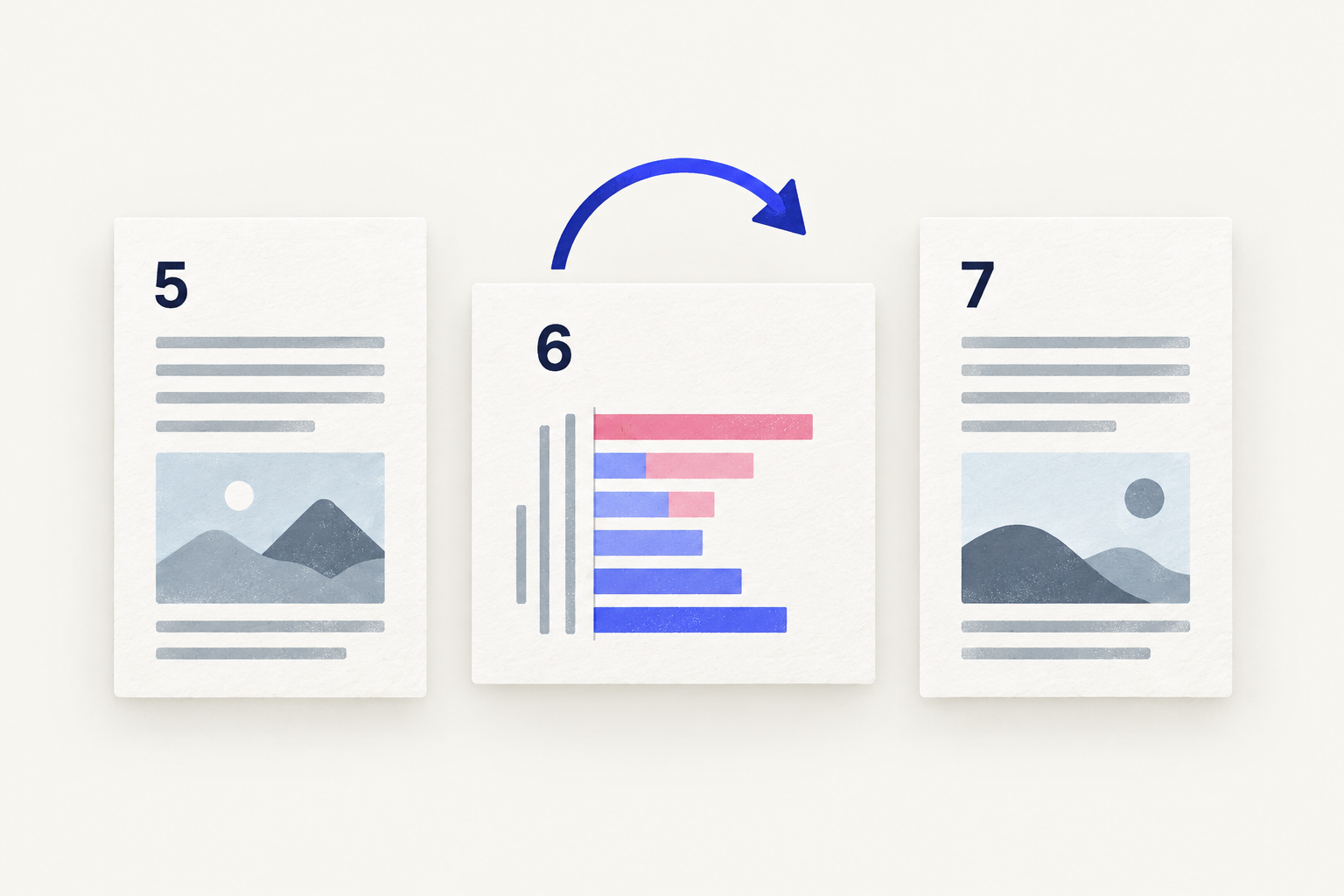
How to rotate a single PDF page with Deckle
- Open Rotate PDF and choose your PDF, or drop it onto the page.
- Go to the page you want to turn, using the page thumbnails or the preview.
- Under Rotation scope, choose This page. The scope starts at All pages, so this is the step people most often miss.
- Choose Turn left or Turn right. Each click is a quarter turn. The preview shows the page in its new position.
- Choose Rotate PDF. The button stays disabled and says "Turn at least one page first." until a page has been turned.
- Download the new PDF and check the turned page and the pages either side of it.
The result screen tells you how many pages were turned. For a single-page fix it should say 1; any other number means another page changed too.
Check the scope before you click
Rotation scope has two settings:
| Setting | What a turn does |
|---|---|
| All pages | Turns every page in the document by the same amount |
| This page | Turns only the page shown in the preview |
The summary above the controls reads, for example, "Page 6 only" when This page is set, or "All 7 pages" when it isn't. Glance at it before you turn anything.
Once This page is set, it follows you as you move through the document. If you go to another page and click a turn button, that page turns instead. This is useful when a second page needs fixing, but check the page number in the preview before each click.
If every page turned by mistake
If you clicked a turn button while the scope was still All pages, the whole document turned. You don't need to start again from scratch:
- Undo reverses the last turn. If the whole-document turn was your most recent change, one click puts everything back.
- Reset pages clears every turn you have made, so the plan matches the original file again.
- If you already saved and downloaded a copy with every page turned, open your original PDF again rather than trying to turn the wrong copy back. Your source file was never changed.
Then set This page, go back to the page you meant to fix and turn just that one.
A different case: the source file itself has every page sideways, but one page is the right way up. Turn the whole document first with All pages, then set This page and turn the one page that is now wrong back the other way. Both changes are saved together when you choose Rotate PDF.
Decide whether the page needs turning
A page that is wider than it is tall is not always wrong. Landscape tables, charts, plans and some forms are meant to sit sideways, and a reader turns the sheet to read them. Look at the text and headings, not the shape:
- Text runs from bottom to top: choose Turn right once.
- Text runs from top to bottom: choose Turn left once.
- Text is upside down: turn twice in the same direction. See how to fix an upside-down page.
Use the page's position in the file, not the number printed in its footer. In a report with a cover and a contents page, printed page 4 is PDF page 6.
Example: a seven-page report has a sideways budget chart on page 6. Open it in Rotate PDF, go to page 6, set This page and choose Turn left until the chart's labels read normally. Pages 1–5 and 7 stay as they were. After saving, check pages 5, 6 and 7 in the downloaded file.
Tips
- Read the summary line before each turn. "Page 6 only" means you are about to turn one page; "All 7 pages" means the whole document.
- Fix several pages in one run. With This page set, go to each page in turn and rotate it. Every turn is saved together. Rotating several pages one at a time covers that case.
- Rotate while you reorder. If the document also needs pages moved or removed, use Organize PDF pages, which turns a selected page as well, and save once.
- Open the downloaded copy, not the original. The quickest way to think a rotation failed is to reopen the source file by mistake.
Other ways to rotate one page
- Preview on a Mac. Choose View > Thumbnails, select the page, then click Rotate Left in the toolbar, or hold Option and click Rotate Right. Preview saves changes to the file you opened, so choose File > Duplicate first if you need the original.
- Adobe Acrobat. The paid desktop app rotates selected pages permanently from its Organize Pages tool. In the free Reader, View > Rotate view turns the display only and can't be saved; see rotate page vs rotate view.
Frequently asked questions
Why did all my PDF pages rotate when I only wanted one?
The scope was set to All pages, which is where Rotate PDF starts. Use Undo or Reset pages, set Rotation scope to This page, and turn only the page you need.
Can I rotate one page of a PDF without Adobe Acrobat?
Yes. Rotate PDF runs in your browser, so there is nothing to install, and the file is processed on your device rather than uploaded.
Will the rotated page stay rotated when someone else opens it?
Yes. The new orientation is written into the PDF, so any reader shows the page the way you saved it. If you want to know why some rotations disappear, see how to rotate a PDF permanently.
Does rotating one page change the other pages?
No. With This page set, only the page in the preview turns. The other pages keep their orientation, size and content.
Related tools
- Rotate PDF to turn one page or every page
- Organize PDF pages to rotate, reorder and remove pages together
- Merge PDFs to combine corrected files into one