Organise pages
How to rotate several PDF pages in different directions
By DeckleUpdated
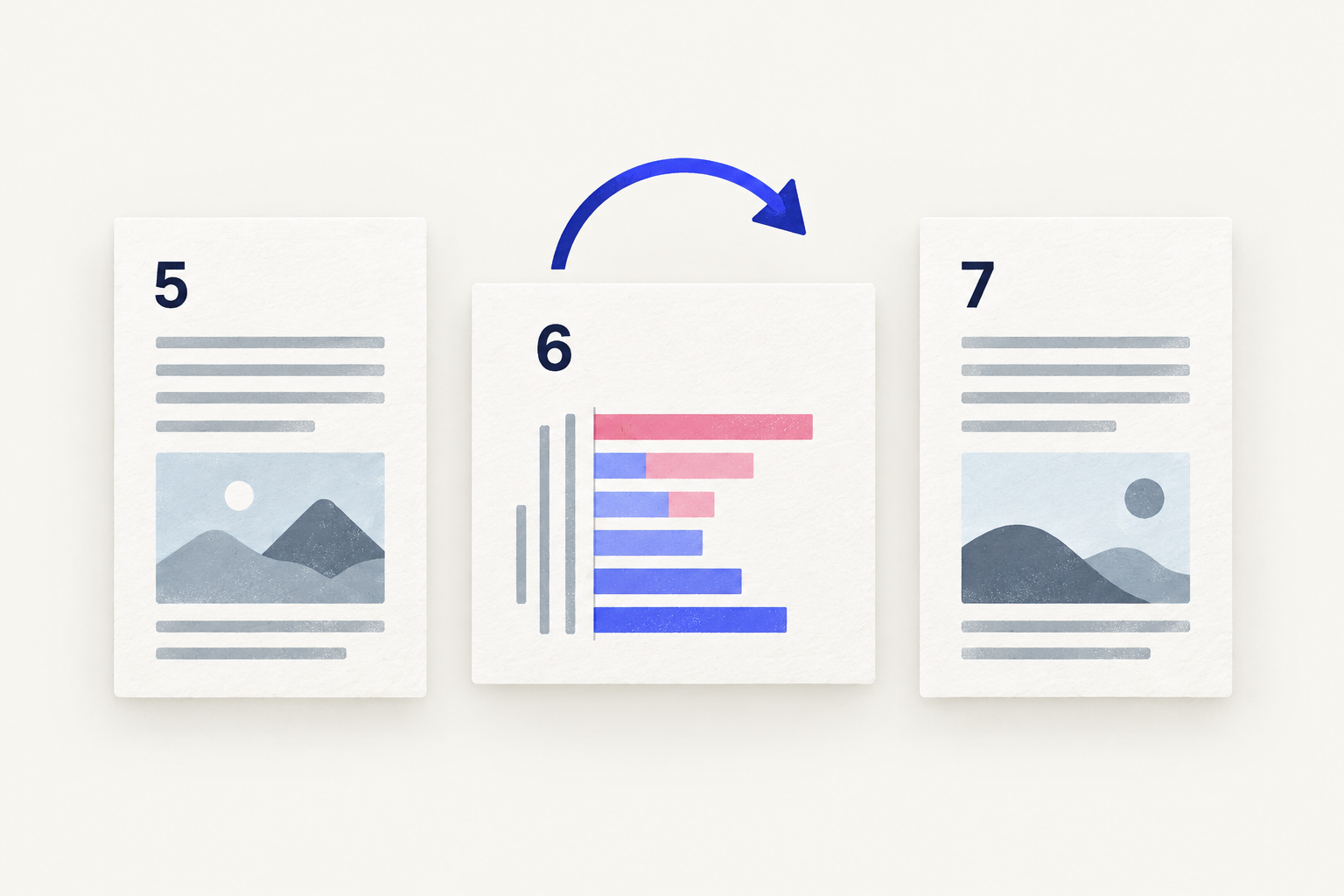
To rotate several PDF pages that each need a different turn, open Rotate PDF, set Rotation scope to This page, then go to each page in turn and choose Turn left or Turn right as that page needs. The scope stays on This page as you move, and every turn is kept. Choose Rotate PDF once at the end to save all of them in one new copy.
How to rotate different pages in different directions
- Open Rotate PDF and choose your PDF, or drop it onto the page.
- Write down the pages that need turning and which way, for example "3 right, 7 left, 11 twice".
- Go to the first page on your list and set Rotation scope to This page.
- Choose Turn left or Turn right until the page reads correctly.
- Go to the next page on your list. This page now targets that page, so turn it the way it needs. Repeat for every page.
- Check the summary line, which counts the turned pages, then choose Rotate PDF.
- Download the new PDF and check each page on your list.
The result screen tells you how many pages were turned. Compare it with the number of pages on your list.
Make a list first
Thumbnails are small, and in a long scan it is easy to skip a page or turn the right page the wrong way. A short list keeps the job under control. Use the page's position in the file, not the number printed in its footer, and decide the direction by reading the content:
| The page reads | Choose |
|---|---|
| Bottom to top (text runs upwards) | Turn right once |
| Top to bottom (text runs downwards) | Turn left once |
| Upside down | Either button twice |
| The right way up, even if landscape | Leave it |
Example: a 14-page inspection report has a sideways floor plan on page 3, a photo scanned the other way on page 7 and an upside-down signature page at 11. The list reads "3 right, 7 left, 11 twice". Go to page 3, set This page and choose Turn right. Go to page 7 and choose Turn left. Go to page 11 and choose Turn right twice. The summary shows three pages turned. Choose Rotate PDF.
How This page follows you
This page always means the page currently in the preview. When you go to another page, the scope moves with you, and turns you made on earlier pages stay in place. The preview caption shows the turn on the current page, for example "Page 7 · 270° clockwise", so you can see what each page will look like before you save.
Two things to watch:
- Check the page number before you click. Because the scope follows you, a click on a turn button always affects the page you are looking at.
- Don't switch back to All pages part-way through. A turn with All pages set adds a quarter turn to every page, including the ones you have already corrected.
Fix a wrong turn
- Undo reverses your last turn, and Redo puts it back. Use them to step back through several turns.
- Turning a page the other way also cancels a turn. A page turned right and then left counts as unchanged.
- Reset pages clears every turn on every page. Use it if the plan has gone wrong and starting again is quicker.
One page, many pages, or a group?
| Your document | Approach |
|---|---|
| One sideways page | Rotate one page in a PDF |
| Several pages, different directions | This guide, with This page in Rotate PDF |
| Many pages all needing the same turn | Select them together in Organize PDF pages and turn the group |
| Every page the wrong way | Keep All pages in Rotate PDF and turn once |
In Organize PDF pages, click the first page, then tick the checkbox on each of the others or hold Shift, Command or Ctrl while you click them, and a toolbar appears with turn buttons for the whole selection. That is faster than visiting 20 pages one by one when they all need the same quarter turn, and it lets you reorder or remove pages in the same pass. See fix sideways pages in a mixed scan packet for that workflow.
Tips
- Tick off pages as you go. Cross each page off your list after you turn it, so you don't turn it twice.
- Count before you save. The summary line shows how many pages are turned. If it doesn't match your list, go back through the pages before you choose Rotate PDF.
- Check every changed page in the download. Page through the new file, stopping at each page on your list and the pages either side of it.
Other ways to rotate several pages
- Preview on a Mac. Choose View > Thumbnails, select a page and click Rotate Left in the toolbar (hold Option and click Rotate Right to turn the other way), then move to the next page. Preview saves changes to the file you opened, so choose File > Duplicate first if you need the original.
- Adobe Acrobat. The paid desktop app rotates selected pages or a page range from its Organize Pages tool. The free Reader only rotates the view, which is not saved.
Frequently asked questions
Can I rotate pages in different directions in one go?
Yes. Set This page, turn each page the way it needs, then choose Rotate PDF once. All the turns are saved in the same new file.
How do I rotate only some pages of a PDF?
Set Rotation scope to This page and turn each page you need. To turn a group of pages the same way, select them together in Organize PDF pages and turn the selection.
Can I type a page range to rotate, such as pages 5–9?
No. Rotate PDF turns one page or every page. For a run of pages, select them in Organize PDF pages, or visit each one with This page set.
Related tools
- Rotate PDF to turn individual pages or the whole document
- Organize PDF pages to turn a selected group and reorder pages
- Merge PDFs to combine corrected files