Organise pages
How to merge PDF files in the right order
By DeckleUpdated
To merge PDF files into one document, open Merge PDFs, add two or more PDFs, tick the files you want, put them in order and choose Merge PDFs. Deckle joins whole files in the order shown in the list and gives you one new PDF to download. Your original files stay as they were.
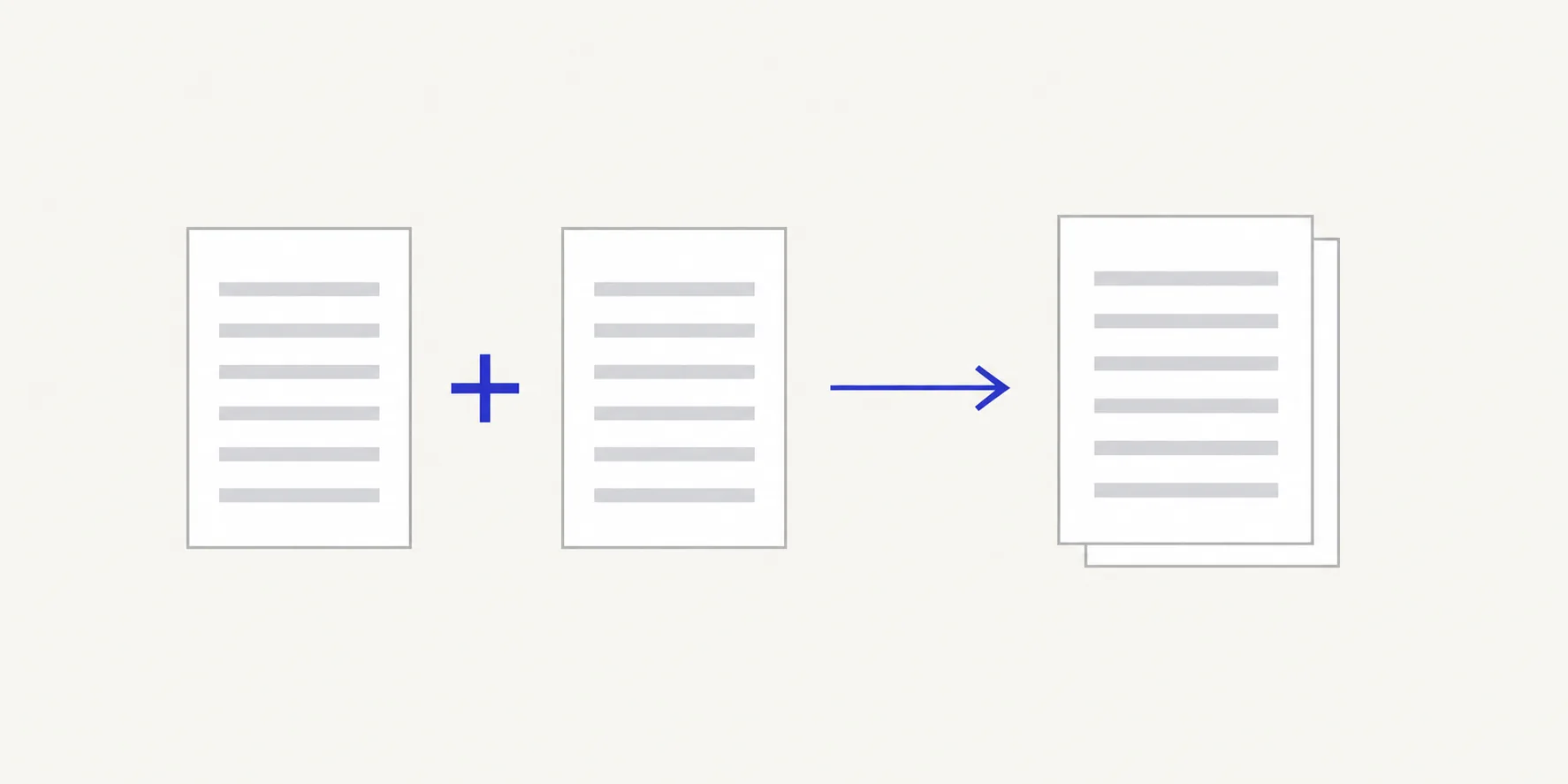
How to merge PDFs with Deckle
- Open Merge PDFs and choose Select files, or drop the PDFs onto the page. You need at least two; Add PDFs brings in more once the list is open.
- Check the ticks in Files to merge. Only ticked files go into the new PDF, so untick anything you want to leave out.
- Put the files in order. Drag a row by its handle, use the up and down arrows on the row, or use Move to to send a file straight to a position.
- Optional: change Output PDF name. It starts as
merged.pdf, and Deckle adds the.pdfextension if you leave it off. - Choose Merge PDFs. The button stays disabled until at least two files are ticked and the name is valid, and it tells you what is missing.
- Download the combined PDF and open it to check the joins between files.
The result screen tells you how many pages were combined and from how many files, so you can compare that with what you expected before you send the document on.
Get the order right first time
Deckle uses the order of the list, not the file names. A file called 01-cover.pdf will not jump to the top on its own; you have to move it there. Before you merge, read the list from top to bottom as if it were the table of contents of the finished document.
For a typical packet the list might read:
- Cover letter
- Report
- Appendix
- Signed form
Each file should appear once. If you added a file twice by mistake, untick the extra copy. Reset selection returns the list and the output name to how they were when you opened the tool, which may leave some files ticked, so check the ticks again after using it.
What merging changes, and what it doesn't
Merging places whole PDFs one after another. It does not:
- reorder pages inside a file. If the appendix of one report is in the wrong place, fix that file first in Organize PDF pages or follow how to reorder pages in a PDF.
- renumber printed page numbers. A footer that says "Page 3" still says "Page 3" after the merge.
- make every page the same size. A Letter page next to an A4 page keeps its own size; see mixed page sizes after a merge.
If a scanned page needs to sit between two sections of an existing report, split the report at that point first, then merge the parts and the scan in order. Combine scanned pages with an existing PDF walks through that case.
Tips for a clean merge
- Convert images first. Merge PDFs takes PDF files. Turn photos and scans into PDFs with JPG to PDF or PNG to PDF, then merge.
- Remove pages you don't need before merging. It is easier to delete a blank page from one source file than to find it in a 60-page packet. See how to delete pages from a PDF.
- Unlock protected files you are allowed to open. If a source asks for a password, create an unlocked copy with Unlock PDF first, using the password you were given.
- Name the output for the reader. A name such as
site-survey-pack-2026-11.pdfis more useful to the person receiving it thanmerged.pdf. Keep it to 150 characters or fewer, without slashes or control characters.
Other ways to merge PDF files
- Preview on a Mac. Open the first PDF, choose View > Thumbnails, then drag each other PDF from the Finder into the sidebar. Preview saves changes to the file you opened, so choose File > Duplicate first if you want to keep the originals. This works well for a few files; reordering many files is easier in a list.
- Adobe Acrobat. In the paid desktop app, choose File > Combine files (Menu > Combine files on Windows), add the files, arrange them and select Combine. It also takes Word, Excel and PowerPoint files. Adobe describes the free Acrobat Reader as a viewer, so combining needs a paid plan.
- Online merge tools. Many online services upload your files to their servers to merge them. Deckle processes the PDFs in your browser instead, so the files are not uploaded.
Frequently asked questions
How many PDFs can I merge at once?
You need at least two. There is no fixed file count in the tool, but very large packets take longer and use more of your device's memory, so merge in batches if your browser slows down.
Can I merge only some pages of a PDF?
Not directly. Merging uses whole files. Extract the pages you need first with Split PDF, then merge the extracted file with the others.
Will merging reduce the quality of my PDFs?
No. Merging copies the pages into a new file; it does not re-compress images or turn text into pictures.
Why are my files in the wrong order after merging?
The list was in a different order from the one you intended. Arrange the list again and create a new merged copy. Merged PDF pages in the wrong order covers the common causes.
Related tools
- Merge PDFs to combine whole files
- Split PDF to take pages out into separate files
- Organize PDF pages to reorder, rotate or remove pages inside one PDF