Organise pages
How to add scanned pages to a PDF
By DeckleUpdated
To add scanned pages to a PDF, turn the scans into a PDF with JPG to PDF or PNG to PDF if they are images, then open Merge PDFs, add the existing PDF and the scan PDF, put them in order and choose Merge PDFs. If the scans belong in the middle of the document rather than at the end, move them into place afterwards in Organize PDF pages. Your original files stay as they were.
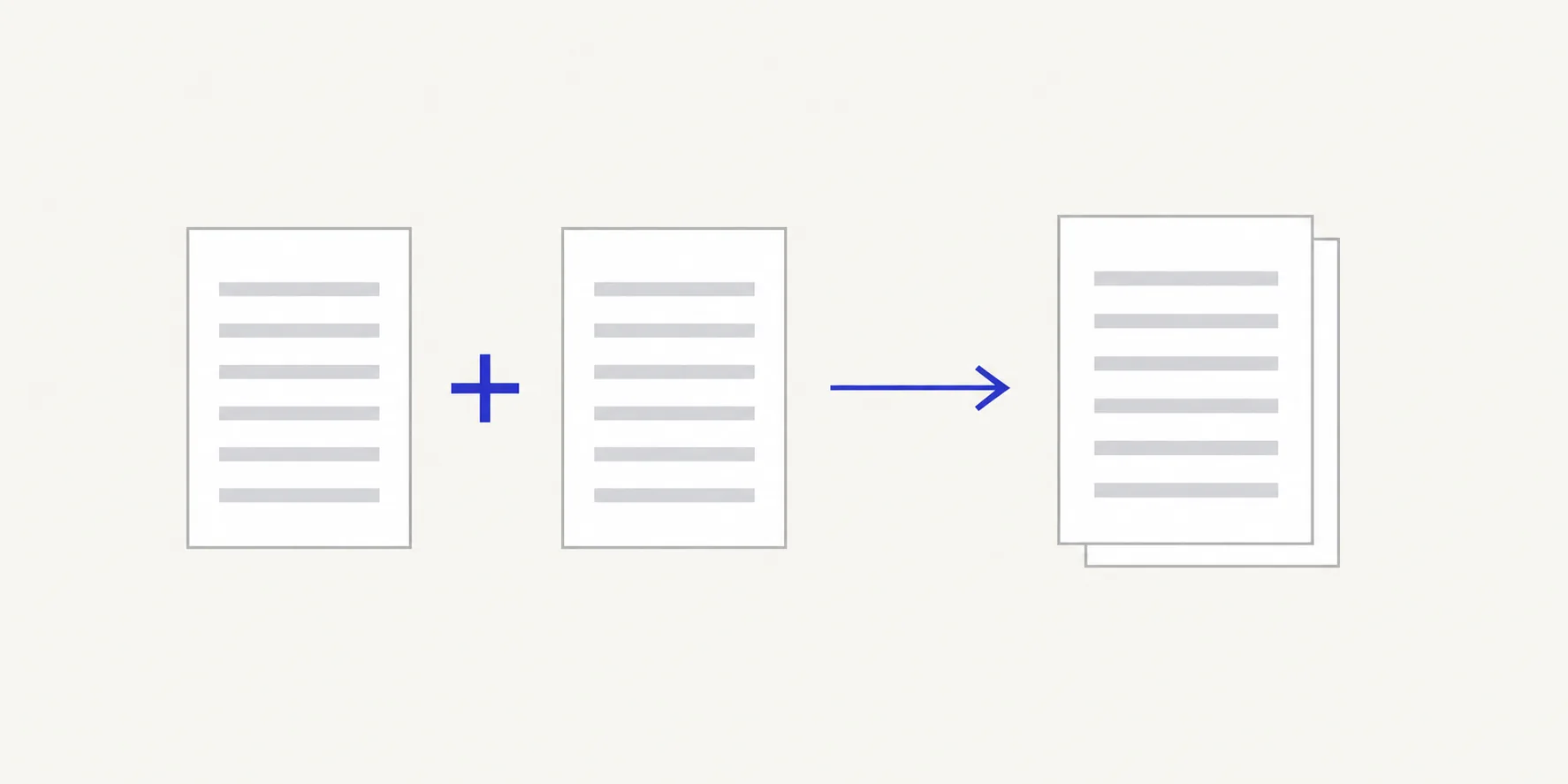
How to add scanned pages to a PDF with Deckle
- If your scanner or phone saved JPG or PNG images, open JPG to PDF or PNG to PDF, choose the images, or drop them onto the page, tick them in the order you want under Images to include, and choose Create PDF. Download the scan PDF.
- Open Merge PDFs and choose Select files, or drop the existing PDF and the scan PDF onto the page.
- Check the ticks in Files to merge. Both files must be ticked.
- Put the files in order. Drag a row by its handle, use the up and down arrows on the row, or use Move to. The file at the top comes first.
- Optional: change Output PDF name, for example
contract-with-signed-pages.pdf. - Choose Merge PDFs and download the combined file.
- Open it and check the page before and after the scanned pages.
The result screen tells you how many pages were combined from how many files. That number should be the existing PDF's page count plus the number of scanned pages.
Put scans in the middle of a document
Merging places whole files one after another, so a scan always lands before or after the other PDF. To put it between two sections, choose one of these routes.
Merge, then move the pages. Merge the document and the scan with the scan last. Open the merged file in Organize PDF pages, select the scanned pages (tick each thumbnail, or hold Shift, Command or Ctrl while you click), then move them with the toolbar above the grid or with Move to position… in a page's ⋯ menu. Choose Save pages. This suits one or two insertions.
Split, then merge three files. Cut the document at the insertion point with Split PDF, using Page ranges I choose, then merge the first part, the scan and the second part in that order. This suits a scan that has to go into several places, because each cut is planned in one list.
Example: a 12-page lease needs a four-page signed schedule after page 7. Split the lease into pages 1–7 and 8–12, which Deckle names lease (1).pdf and lease (2).pdf, then merge lease (1).pdf, signed-schedule.pdf and lease (2).pdf in that order. The result has 16 pages, with the schedule on pages 8 to 11.
How to insert pages into a PDF covers both routes in more detail.
Prepare the scans before you merge
A little preparation saves a second pass through the combined file.
- Turn sideways scans the right way up first. Phone photos and flatbed scans are often rotated. Fix them in Rotate PDF before merging, or follow rotate scans before merging.
- Choose the page size. JPG to PDF can make each page Match each image or Fit inside A4. Fit inside A4 gives scans the same page size as an A4 document, which prints more evenly.
- Remove blank backs. A duplex scan of single-sided paper produces blank pages. Remove them in Organize PDF pages before or after the merge.
- Expect no selectable text. A scanned page is a picture of the paper. Converting it to PDF does not recognise the words, so you cannot search or copy text from those pages.
Check the combined PDF
Open the downloaded file and look at three things:
| Check | What to look for |
|---|---|
| Page count | Existing pages plus scanned pages, with nothing missing |
| Joins | The page before the first scan and after the last scan are the right ones |
| Orientation and size | Every scan reads upright; an image-sized page next to A4 may look smaller on screen |
Printed page numbers in the original document do not change, so a footer that says "8" may now sit on PDF page 12. If a reader will refer to printed numbers, say so in your covering note.
Tips
- Name scan files in reading order. Names such as
01-signature.jpgmake it easier to tick them in the right order, although Deckle always follows the list order, not the names. - Scan at a readable resolution. 200 to 300 dpi is enough for typed and handwritten pages; higher settings mostly make the file larger.
- Keep the original document. Deckle never overwrites it, so you can start again if the scan lands in the wrong place.
- Unlock protected files first. If the existing PDF asks for a password, make an unlocked copy with Unlock PDF using the password you were given.
Other ways to add scanned pages to a PDF
- Preview on a Mac. Open the PDF, choose View > Thumbnails, then drag the scan PDF from the Finder into the sidebar. Preview saves changes to the file you opened, so choose File > Duplicate first to keep the original.
- Adobe Acrobat. In the paid desktop app, choose All tools > Organize pages, then Insert, to add pages from a file, the clipboard, a scanner or a blank page at the place you choose. Adobe describes the free Acrobat Reader as a viewer and lists editing and organising PDFs under its paid plans.
Frequently asked questions
Can I add a photo straight into an existing PDF?
Not in one step. Convert the photo to a PDF with JPG to PDF, then merge it with the existing PDF.
Can I make the scanned pages searchable?
Not with these tools. Converting an image to PDF keeps it as a picture, so the text on a scanned page cannot be searched or copied.
Why does the scanned page look smaller than the others?
Its page size is different. A page made with Match each image takes the image's size; choose Fit inside A4 when you convert the scan if you want it to match an A4 document.
Will the existing pages lose quality?
No. Merging copies the pages into the new file without re-compressing them.
Related tools
- JPG to PDF and PNG to PDF to turn scan images into a PDF
- Merge PDFs to join the scan and the document
- Organize PDF pages to move scanned pages to the right position