Organise pages
How to insert pages into a PDF
By DeckleUpdated
To insert pages into a PDF, open Merge PDFs, add the PDF and the file with the new pages, and choose Merge PDFs with the new pages last. Then open the merged file in Organize PDF pages, move the new pages to where they belong and choose Save pages. For an insert in several places, split the PDF at each point with Split PDF and merge the parts in order instead. Both routes leave your original files unchanged.
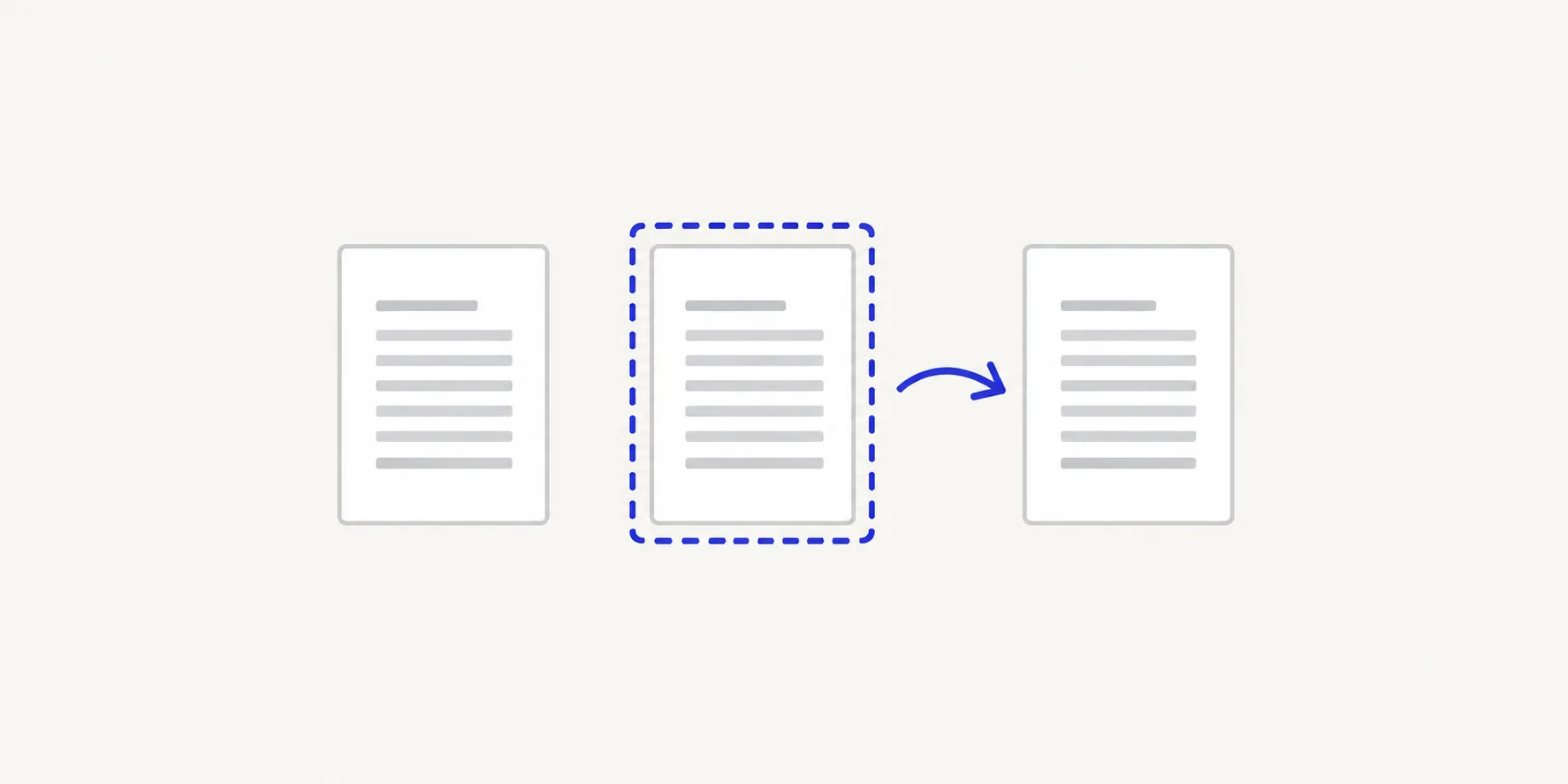
How to insert pages into a PDF with Deckle
- Make sure the pages you want to insert are a PDF. Turn photos or scans into one with JPG to PDF or PNG to PDF.
- Open Merge PDFs, choose Select files and add the main PDF and the PDF with the new pages.
- In Files to merge, put the main PDF first and the new pages second, then choose Merge PDFs. Download the result.
- Open the merged file in Organize PDF pages. The new pages are at the end.
- Select the new pages: tick each thumbnail, or hold Shift, Command or Ctrl while you click.
- Move them into place. For a single page, open its ⋯ menu, choose Move to position…, type the position and choose Move. For several pages, use the toolbar above the grid to move them earlier, or move the first one with Move to position… and the rest after it.
- Choose Save pages, download the PDF and check the pages either side of the insert.
The result screen tells you how many pages are in the new order. It should equal the original page count plus the pages you inserted.
Insert at more than one point: split and merge
When new material goes into several places, it is easier to cut the document into parts and merge everything in one list.
- Open Split PDF and set How to split it to Page ranges I choose.
- Enter a range for each part, ending each one where an insert begins. Choose Add range for each extra part.
- Choose the action button, which shows the number of files, such as Create 3 PDFs, and download all the parts, one at a time or as a ZIP.
- Open Merge PDFs and add the parts and the pages to insert.
- Arrange Files to merge so each insert sits between the right parts, then choose Merge PDFs.
Example: a 20-page tender needs a signed declaration after page 5 and a price schedule after page 14. Split the tender into pages 1–5, 6–14 and 15–20. Merge in the order: part 1, declaration, part 2, price schedule, part 3. The finished file has the declaration on page 6 and the schedule straight after the old page 14.
How to split a PDF by page range explains how to plan the ranges without gaps.
Which route to use
| Situation | Route |
|---|---|
| One insert, a page or a few | Merge, then move in Organize PDF pages |
| An insert at the very start or end | Merge only; put the files in order |
| Inserts in two or more places | Split at each point, then merge everything |
| Copy an existing page to another position | Organize PDF pages: Duplicate, then move the copy |
If you are swapping one page for a corrected version rather than adding to the document, remove the old page in Organize PDF pages while you move the new one in. How to replace a page in a PDF covers that case.
Work out the position
Positions are counted in the finished file. If the new page should follow page 7, its position is 8. If you are inserting three pages after page 7, the first goes to position 8 and the others follow it.
Use page positions in the file, not the numbers printed on the pages. A report with a cover and two contents pages has printed page 1 at position 4. Printed footer numbers also stay as they are after the insert, so the page printed "8" may now be page 9 of the file.
Tips
- Insert, rotate and remove in one pass. Organize PDF pages also turns and removes pages, so you can fix a sideways scan while it is open.
- Check the joins. Look at the page before and after every insert at full size.
- Rename the parts. Split PDF names them
tender (1).pdf,tender (2).pdfand so on; names such astender-1-5.pdfmake the merge list easier to read. - Unlock protected files first. If either PDF asks for a password, make an unlocked copy with Unlock PDF using the password you were given.
Other ways to insert pages
- Preview on a Mac. Open the PDF, choose View > Thumbnails and drag the other PDF from the Finder into the sidebar. To place single pages, open both PDFs with thumbnails showing and drag thumbnails from one sidebar to the other. Preview saves changes to the file you opened, so choose File > Duplicate first.
- Adobe Acrobat. In the paid desktop app, choose All tools > Organize pages, then Insert > From file, and choose whether the pages go before or after a page number. Adobe describes the free Acrobat Reader as a viewer and lists editing and organising PDFs under its paid plans.
Frequently asked questions
Can I insert a blank page into a PDF?
Deckle has no blank-page button. Convert a plain white image with JPG to PDF, or save a blank page from any editor as a PDF, then insert it like any other page.
Can I insert an image directly into a PDF?
Convert it to a PDF first with JPG to PDF or PNG to PDF, then insert that PDF.
Does inserting pages change the existing pages?
No. Pages are copied into the new file as they are, without re-compressing images or text.
Will the page numbers update?
No. Numbers printed in footers are part of each page and do not change. Only the positions in the file change.
Related tools
- Merge PDFs to join the PDF and the new pages
- Organize PDF pages to move inserted pages to an exact position
- Split PDF to cut the document where new pages go