Organise pages
How to replace a page in a PDF
By DeckleUpdated
To replace a page in a PDF, open Split PDF, add split points just before and just after the page you want to replace, and choose Create 3 PDFs. Then open Merge PDFs, add the first part, your replacement page and the last part in that order, and choose Merge PDFs. The result is the same document with the new page in place of the old one, and your original file stays as it was.
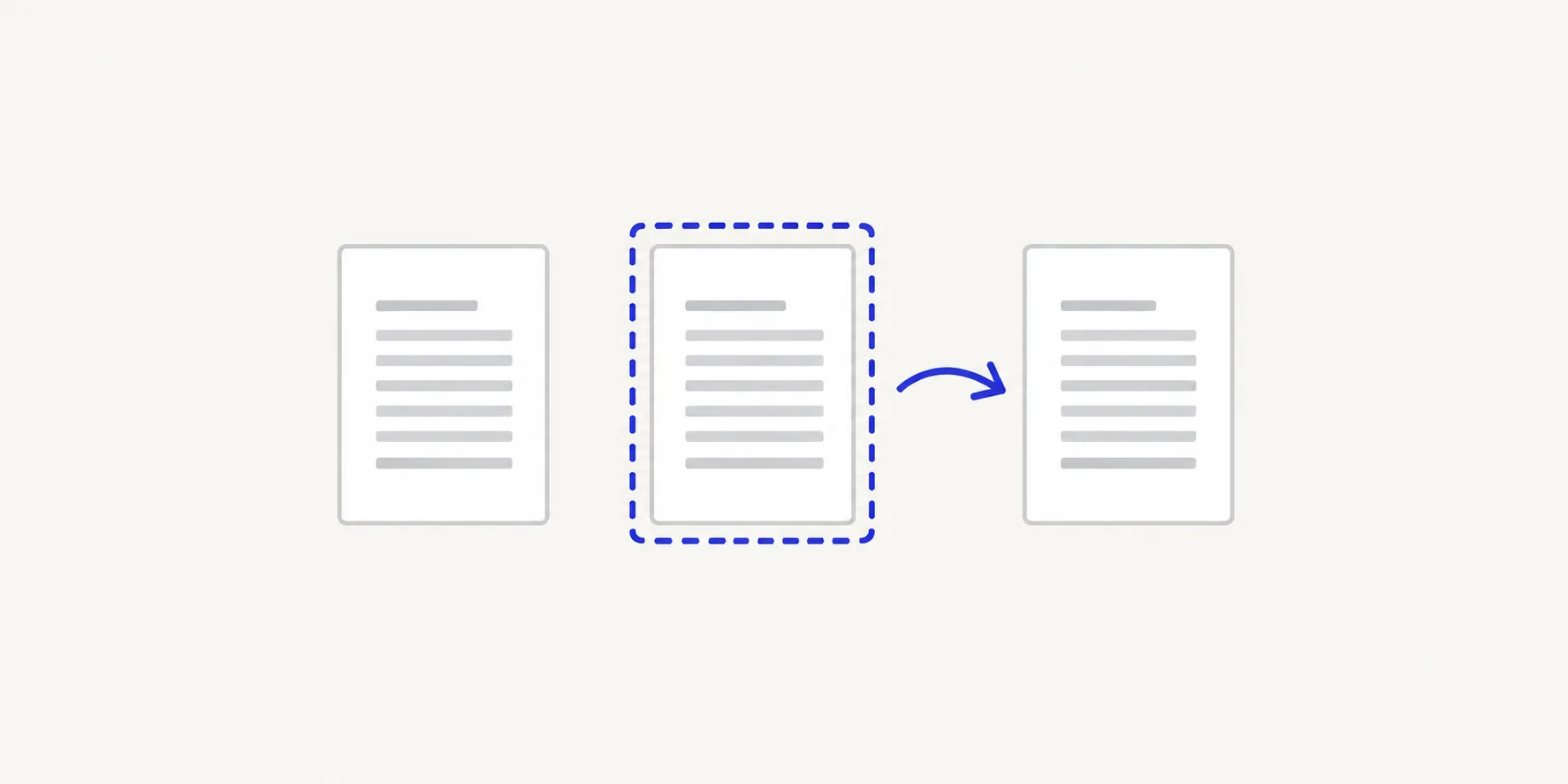
How to replace a page in a PDF with Deckle
- Get the replacement page as a PDF. If it is a photo or scan, convert it first with JPG to PDF (see below).
- Open Split PDF and choose the original PDF, or drop it onto the page.
- Leave How to split it on Choose split points. The tool starts with a split after page 3; click those scissors to remove it unless you need it. Then click the scissors after the page before the one you're replacing, and after the page you're replacing.
- Check the Planned files list: the middle file should be one page, the page you're replacing.
- Choose Create 3 PDFs, then Download all 3 as a zip and unzip the files.
- Open Merge PDFs, choose Select files and add the first part, the replacement page and the last part. Leave the old middle page out.
- Put the files in that order, choose Merge PDFs and download the result.
The merge result screen says how many pages were combined. Replacing one page with one page, it should match the original page count.
Example: replace page 7 of a 12-page contract
A signed page 7 comes back as a scan and needs to replace the unsigned page.
- In Split PDF, remove the starting split after page 3, then split after page 6 and after page 7. The plan shows three files: pages 1–6, page 7, and pages 8–12.
- Create them. You get
contract (1).pdf,contract (2).pdfandcontract (3).pdf. - Convert the signed scan to
page-7-signed.pdf. - In Merge PDFs, add
contract (1).pdf,page-7-signed.pdfandcontract (3).pdfin that order and merge.
The new contract has 12 pages, with the signed page at position 7. Delete contract (2).pdf once you're happy, so the unsigned page doesn't get sent by mistake.
To replace the first or last page you need only one split point. For page 1, split after page 1 and merge the replacement with the second part. For the last page, split before it and merge the first part with the replacement.
Turn a photo or scan into a replacement page
Merge PDFs takes PDF files, so convert an image first:
- Open JPG to PDF, or PNG to PDF or HEIC to PDF for those formats.
- Under Page size, choose Fit inside A4 if the rest of the document is A4, or Match each image to keep the image's own size.
- Set Orientation to match the page you're replacing.
- Choose Create PDF and download the one-page PDF.
A page made from a photo is an image, so its text can't be selected or searched, unlike the typed pages around it. If the original page was created in a word processor, exporting the corrected page from there as a PDF gives a cleaner result.
Replace a page without splitting
If you prefer to work in one file, Organize PDF pages can do the swap after a merge:
- In Merge PDFs, merge the original PDF with the replacement page at the end.
- Open the merged file in Organize PDF pages.
- Open the old page's ⋯ menu and choose Remove.
- Open the ⋯ menu on the new last page, choose Move to position…, type the position and choose Move.
- Choose Save pages.
This leaves fewer files in your downloads folder. The split method is easier to check, because you can see each part before you join them. How to insert pages into a PDF uses the same steps without removing anything.
Tips
- Check page sizes match. A Letter page placed in an A4 document keeps its own size. See mixed page sizes after a merge.
- Count positions, not printed numbers. "Page 7" in the footer may be position 9 if the PDF has a cover and contents page. PDF page position vs printed page number explains the difference.
- Name the final file clearly. Add
-signedor-v2so it can't be confused with the original. - Remember signatures. Replacing a page in a digitally signed PDF invalidates that signature; ask the signer to sign the new version if it matters.
Other ways to replace a PDF page
- Adobe Acrobat. In the paid desktop app, choose All tools > Organize pages, then Replace, pick the PDF with the new page and enter which pages to swap.
- Preview on a Mac. Open both PDFs and choose View > Thumbnails in each. Drag the new page into the original's sidebar next to the old one, then select the old page and press Delete. Preview saves changes to the file you opened, so choose File > Duplicate first.
Frequently asked questions
Can I replace a page in a PDF without Adobe Acrobat?
Yes. Split PDF, Merge PDFs and JPG to PDF run in your browser, so there is nothing to install, and the files are processed on your device rather than uploaded.
Will the replaced page keep the same page number?
Its position will, if you merge the parts in the right order. Any number printed on the replacement page is whatever was on it when it was made.
Can I replace several pages at once?
Yes. Add a split point either side of each page you're replacing, then merge the parts and the new pages in order. For many scattered pages, the Organize PDF pages method is quicker.
Related tools
- Split PDF to cut the document either side of the page
- Merge PDFs to join the parts with the new page
- JPG to PDF to turn a photo or scan into a PDF page