Organise pages
How to delete pages from a PDF
By DeckleUpdated
To delete pages from a PDF, open Organize PDF pages, select the page you don't want, choose Remove, then choose Save pages. Deckle creates a new copy without the removed pages and leaves your original file unchanged. You can remove one page or several at once, and undo a removal before you save.
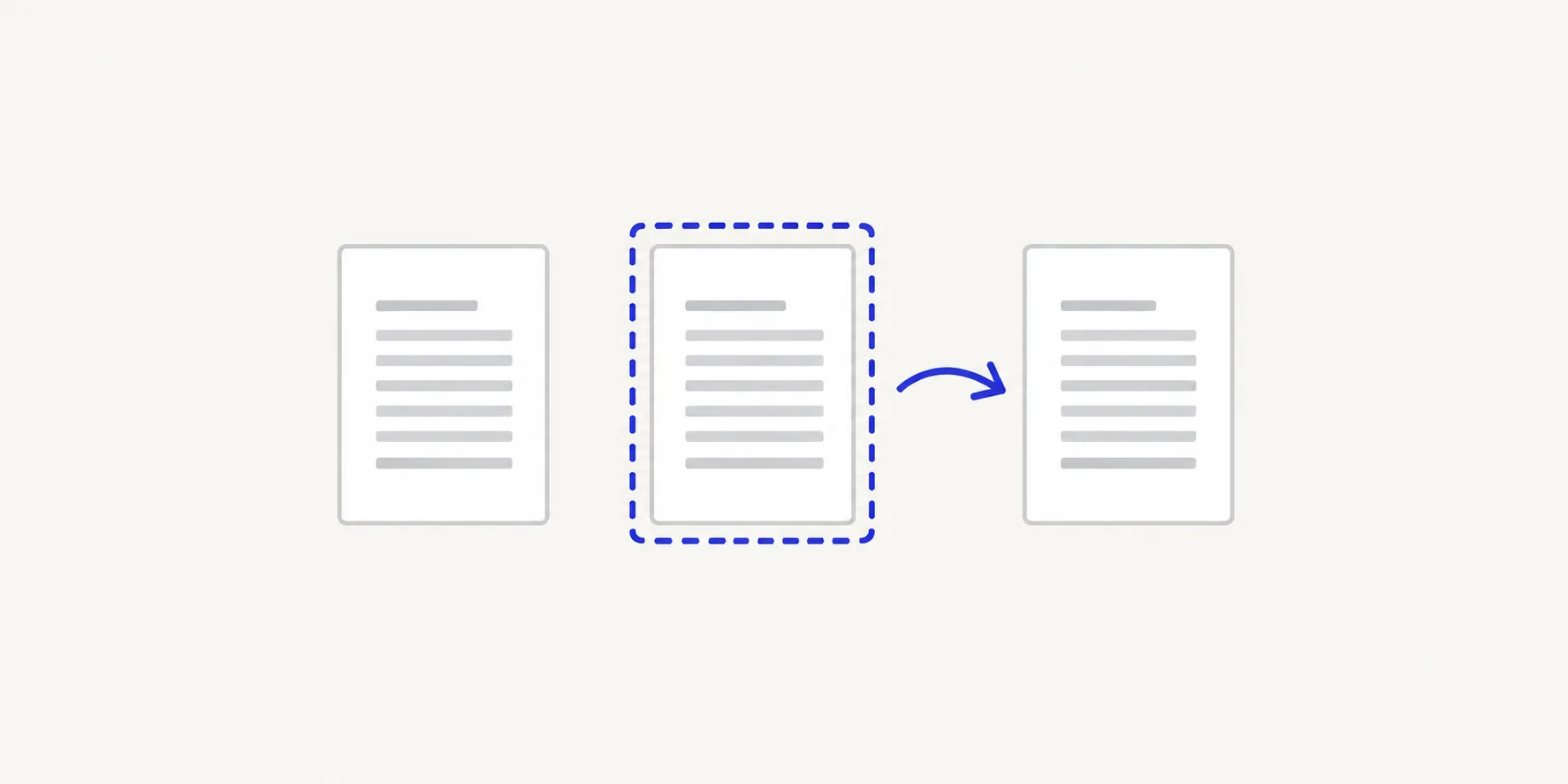
How to delete pages from a PDF with Deckle
- Open Organize PDF pages and choose your PDF, or drop it onto the page. Every page appears as a thumbnail.
- Point at the page you want to delete and open its ⋯ menu. To check it at reading size first, select it and switch the page layout to Single page.
- Choose Remove. The page is marked as removed but stays visible, so you can still see what you are taking out.
- Repeat for any other pages, or select several at once (see below).
- Choose Save pages to create the new PDF.
- Download it and check the page count and the pages either side of each removal.
The result screen tells you how many pages the new PDF has, which should be the original count minus the pages you removed.
Delete several pages at once
To remove a group of pages, select them together:
- tick the checkbox on each thumbnail, or
- hold Shift, Command or Ctrl while you click the thumbnails.
When more than one page is selected, a toolbar appears above the grid. Choose its remove button, marked with an X, to mark every selected page in one step. This is the quickest way to clear a run of blank scanned pages or an unwanted appendix.
Find the right page
Use the page's position in the file, not the number printed on it. A document with a cover and a contents page has printed page 1 at PDF page 3, so "delete page 5" can mean two different pages. The thumbnails in Deckle are in file order, and the preview shows the page large enough to read.
Look closely at pages that seem blank. A scan can carry a faint signature, a stamp or handwritten notes that are easy to miss at thumbnail size.
Changed your mind?
Nothing is deleted until you choose Save pages, and even then the source file is untouched.
- Select a removed page and choose Restore to bring it back.
- Use Undo and Redo to step through your changes.
- Reset pages clears every change and starts again from the original order.
The new PDF must keep at least one page. If you remove them all, the button stays disabled and says "Keep at least one page."
Delete, extract or split?
Pick the task by what you need to end up with:
| You want | Use |
|---|---|
| The same document without some pages | Delete pages in Organize PDF pages |
| A separate file with just a few pages | Extract pages |
| The document cut into several files | Split a PDF by page range |
If you might need the removed pages later, keep the original file. Deckle never overwrites it, but it is easy to delete the wrong download from your folder.
Tips
- Delete before you merge. Removing a blank page from one source is quicker than finding it in a combined packet. See how to merge PDF files.
- Fix other page problems in the same pass. Organize PDF pages also turns, moves and duplicates pages, so you can remove, reorder and rotate before saving once.
- Expect printed numbers to stay. Removing page 4 does not renumber the footers on the pages after it. Bookmarks that pointed to a removed page may no longer lead anywhere; see check bookmarks after page changes.
Other ways to delete PDF pages
- Preview on a Mac. Choose View > Thumbnails, select the pages and press the Delete key. Preview saves changes to the file you opened, so choose File > Duplicate first to keep the original.
- Adobe Acrobat. In the paid desktop app, choose All tools > Organize pages, hover over a thumbnail and select Delete, then save. Adobe describes the free Acrobat Reader as a viewer and lists editing and organising PDFs under its paid plans.
Frequently asked questions
Can I delete a page from a PDF without Adobe Acrobat?
Yes. Organize PDF pages runs in your browser, so you don't need to install anything, and the file is not uploaded.
Will deleting pages reduce the file size?
Usually a little, because the removed pages are no longer in the file. How much depends on what those pages contained; a page with a large photo saves more than a page of text.
Can I delete pages from a password-protected PDF?
First create an unlocked copy with Unlock PDF, using the password you were given, then remove the pages from that copy.
How do I delete a blank page at the end of a PDF?
Open the last thumbnail's ⋯ menu, choose Remove and save. Check the page at full size first in case it holds a signature or a note.
Related tools
- Organize PDF pages to remove, reorder, rotate or duplicate pages
- Split PDF to cut a PDF into separate files
- Merge PDFs to combine cleaned-up files