Organise pages
How to move an appendix to the end of a PDF
By DeckleUpdated
To move an appendix to the end of a PDF, open Organize PDF pages, select the appendix pages, choose Move selected pages to end in the toolbar above the grid, then choose Save pages. The appendix pages keep their order and land after every other page. Deckle saves the result as a new PDF and leaves your original file as it was.
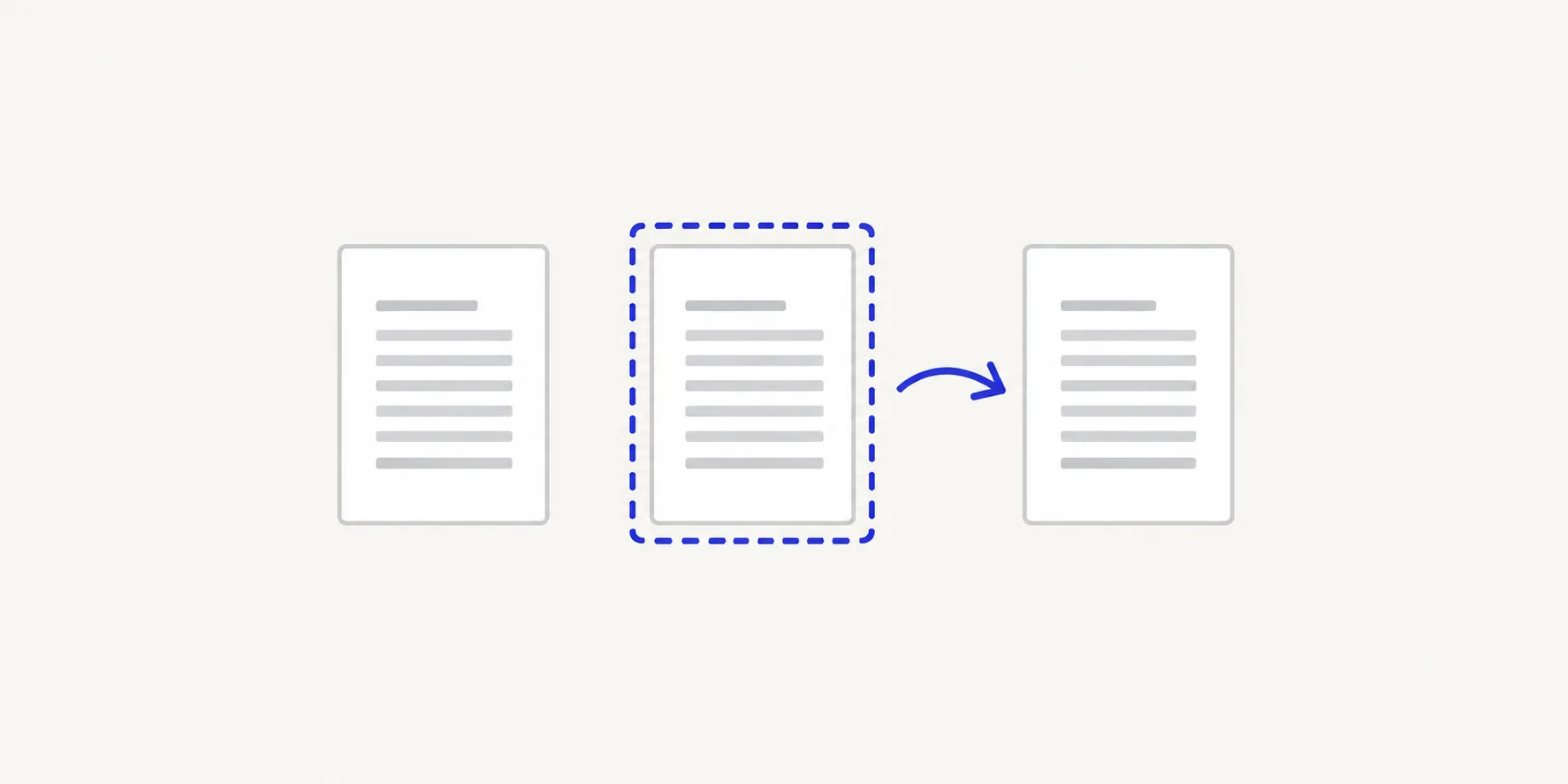
How to move an appendix to the end with Deckle
- Open Organize PDF pages and choose your PDF, or drop it onto the page. Every page appears as a thumbnail in file order.
- Find the first and last page of the appendix. Select a thumbnail to see it at reading size in the preview.
- Select every appendix page: tick the checkbox on each thumbnail, or hold Shift, Command or Ctrl while you click.
- In the toolbar that appears above the grid, choose Move selected pages to end (the down arrow over a line).
- Check the thumbnails where the appendix used to start and at the new end of the document.
- Choose Save pages. The button stays disabled until you have changed something, and says "Reorder, duplicate, turn or remove a page first."
- Download the new PDF and check the page before and after each join.
The result screen tells you how many pages are in the new order. Moving pages doesn't add or remove any, so the count should match the original.
Decide what the end of the document is
Move selected pages to end puts the selected pages after every page you did not select. That is right when the appendix should be the very last thing in the file. It is wrong when something else, such as a references list or a back cover, should stay after it.
Example: a 23-page report has a cover on page 1, the main text on pages 2–8, an appendix wrongly placed on pages 9–14, the rest of the text on pages 15–20 and references on pages 21–23. Select pages 9–14 and move them to the end. The new order is 1–8, 15–23, then 9–14, so the references now come before the appendix.
If the references should stay last, make a second move: select the references, now at positions 15–17, and move them to the end too. The order becomes 1–8, 15–20, 9–14, 21–23. A divider page that introduces the appendix belongs in your selection; a blank page between sections may not.
Put the appendix at an exact position
When the appendix belongs somewhere other than the very end, move it to a numbered place:
- Select the first appendix page.
- Open its ⋯ menu and choose Move to position….
- Type the position the page should have in the finished PDF and choose Move.
- Repeat for the next appendix page, using the position straight after it.
For a long block, it is often quicker to move the whole appendix to the end first, then move the few pages that must follow it, such as a back cover, with Move to end. Moving a single page to the end puts it after the appendix.
Several appendices, or one appendix in parts
Moving pages together keeps them in their current relative order. If appendices A and B are already in the right order, select both and move them in one step. If B currently sits before A, move them one at a time, in the order you want them to finish. Each move to the end goes after the pages already there, so move A to the end first, then B. You finish with A followed by B.
Check the thumbnail sequence after each move. The appendix should no longer interrupt the main text, and the last page should be the one you intend readers to finish on.
Fix mistakes before you save
- Undo and Redo step back and forward through every move.
- Reset pages returns every page to its original position.
- Your source file is not changed. If the saved order is wrong, open the original again and repeat the moves.
Tips
- Write the target order down first. For a long report, a line such as "1–8, 15–23, 9–14" makes it easy to check the grid before you save. How to reorder pages in a PDF covers planning in more detail.
- Use positions in the file, not printed labels. Appendix pages printed "A-1" to "A-6" still sit at PDF positions such as 15–20. See PDF page position versus printed number.
- Expect printed numbers and cross-references to stay. A sentence that says "see Appendix A on page 15" isn't rewritten when the appendix moves. Bookmarks may also need checking; see check bookmarks after page changes.
- Do other page edits in the same pass. The same screen turns, duplicates and removes pages, so you can rotate a sideways appendix table while you move it.
Other ways to move pages to the end of a PDF
- Preview on a Mac. Choose View > Thumbnails, select the appendix pages and drag them below the last thumbnail. Preview saves changes to the file you opened, so choose File > Duplicate first if you need the original order.
- Adobe Acrobat. In the paid desktop app, choose All tools > Organize pages and drag the thumbnails to the end. Adobe describes the free Acrobat Reader as a viewer and lists editing and organising PDFs under its paid plans.
Frequently asked questions
Can I move several pages to the end of a PDF at once?
Yes. Select all of them, then choose Move selected pages to end in the toolbar above the grid. They keep their order relative to each other.
Can I move the appendix to the start instead?
Yes. Select the pages and choose Move selected pages to start. This is useful when a summary or cover sheet needs to come first.
Will moving the appendix change its page numbers?
No. Printed numbers are part of the page content and stay as they were. Only the page's position in the file changes.
What if the appendix is in a separate PDF?
Merge it after the main document instead. Open Merge PDFs, put the main document first and the appendix last, and choose Merge PDFs. See how to merge PDF files in the right order.
Related tools
- Organize PDF pages to move, rotate, duplicate or remove pages
- Merge PDFs to add an appendix that is in a separate file
- Split PDF to save the appendix as its own PDF