Organise pages
How to merge a password-protected PDF
By DeckleUpdated
To merge a password-protected PDF, first make an unlocked copy: open Unlock PDF, enter the password you were given and choose Remove the password. Then open Merge PDFs, add the unlocked copy with the other files, put them in order and choose Merge PDFs. The protected original stays as it was, so you still have it if the packet needs to go out protected.
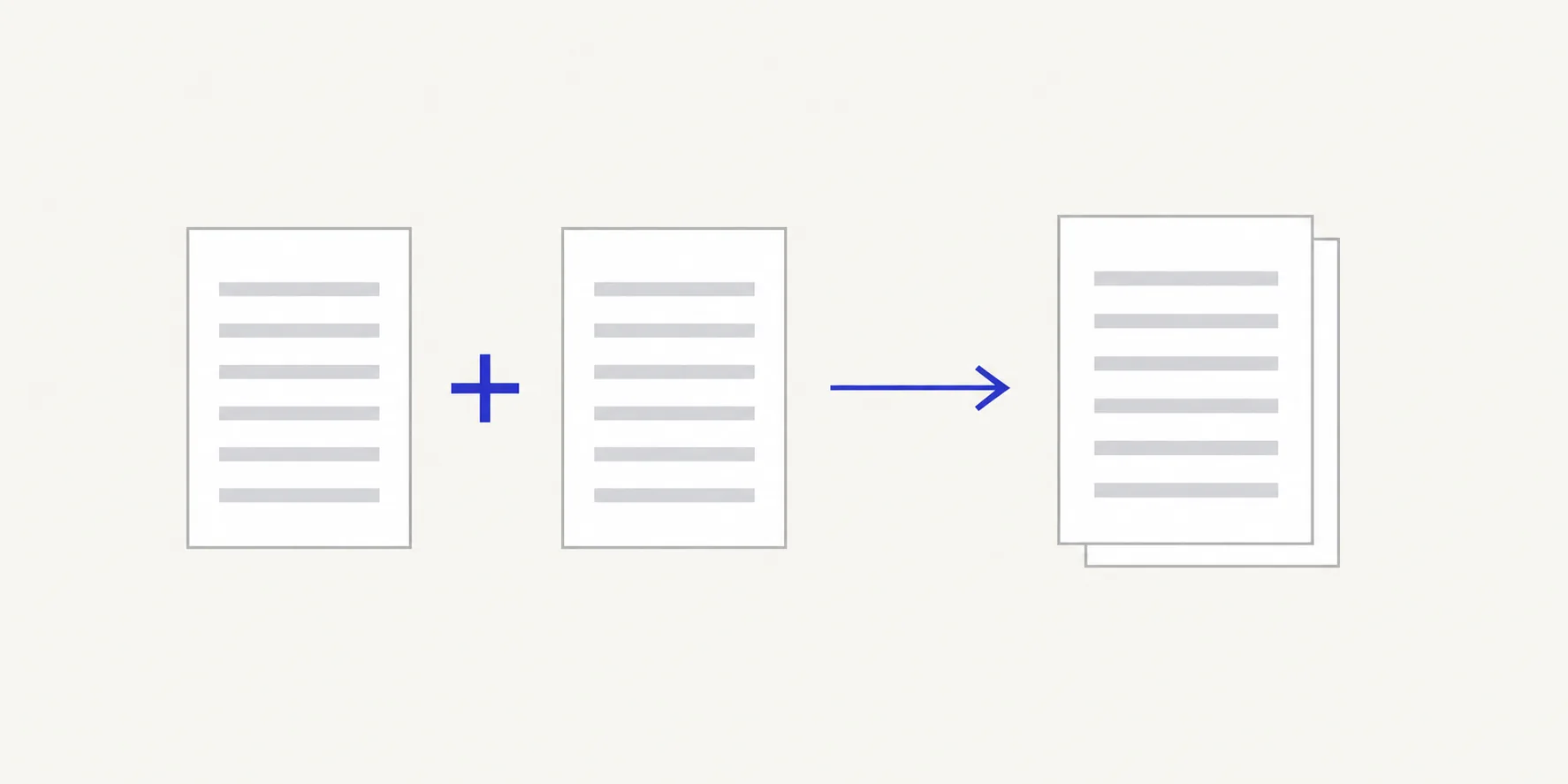
How to merge a protected PDF with Deckle
- Open Unlock PDF and choose the protected PDF, or drop it onto the page.
- Type the password in Password. If the file opens without a password but blocks editing, leave the field empty.
- Choose Remove the password and download the unlocked copy.
- Open Merge PDFs, choose Select files and add the unlocked copy and the other files.
- Tick the files in Files to merge and arrange them by dragging, with the up and down arrows on each row, or with Move to.
- Choose Merge PDFs and download the combined file.
- Optional: protect the finished packet with Password protect PDF before you send it.
If you add a protected file straight to a tool that edits pages, Deckle stops before the run and tells you what it needs, such as "Enter the password to read this PDF." Nothing is changed until the file can be read.
Two kinds of protection
PDFs can be protected in two ways, and both stop a merge until you deal with them.
| What happens when you open it | Type of protection | What to enter in Unlock PDF |
|---|---|---|
| A reader asks for a password before showing anything | Open password | The password you were given |
| It opens normally, but editing or printing is blocked | Permissions restriction | Leave Password empty |
A restricted file looks normal in a reader, which is why it often catches people out. Deckle tells you "Unlock this owner-restricted PDF before editing it." when it finds one.
Only remove protection from files you own or have permission to change. A bank, employer or court may protect a document for a reason, and some recipients expect to receive it in its original form. If in doubt, ask the sender for an unprotected copy.
Keep the packet protected
Unlocking removes the password from the copy, and the merged file is not protected either. If the original was protected because it contains personal or financial details, protect the merged packet before sending it.
- Open Password protect PDF with the merged file.
- Enter a new password in Password and Confirm password.
- Choose Protect this PDF and download the result.
Send the password separately from the file, for example by phone or a different messaging app. How to add a password to a PDF covers this in more detail.
Check the merged file
Open the combined PDF and find the pages that came from the protected file. Check the first and last of them and the pages either side. The result screen of Merge PDFs states how many pages were combined; that should equal the page count of the unlocked copy plus the other files. If the count is short, the protected file may not have been ticked; see merged PDF page count does not match.
Tips
- Keep the protected original. Unlock PDF makes a new copy and leaves the source unchanged, so you can return to it.
- Unlock every protected file first. In a packet of bank statements, each month may have its own protection. Unlock them one by one, then merge them together.
- Check the password before you start. Passwords are case-sensitive. If Deckle says the password is wrong, check Caps Lock and the exact characters the sender gave you.
- Delete unlocked copies you no longer need. After the merge, the unlocked single file is one more unprotected copy of the document on your device.
Other ways to merge a protected PDF
- Adobe Acrobat. The paid desktop app removes password security from a PDF when you know the password. Then combine the files as usual.
- Ask the sender. For official documents, an unprotected copy from the source is often quicker and avoids any question about whether you were allowed to remove the protection.
Frequently asked questions
Can I merge a protected PDF without the password?
No. Deckle needs the password to read a file that requires one. It does not guess or bypass passwords.
Will the merged PDF keep the original password?
No. Merging creates a new file from the unlocked copy, with no password. Add one with Password protect PDF if you need it.
Why does a PDF that opens fine still need unlocking?
It has a permissions restriction that blocks editing. Open it in Unlock PDF, leave the password empty and choose Remove the password.
Does unlocking change the content?
No. Unlock PDF removes the protection and keeps the pages as they were.
Related tools
- Unlock PDF to make an unprotected copy with a password you know
- Merge PDFs to combine the unlocked copy with other files
- Password protect PDF to protect the finished packet