Organise pages
Why does my merged PDF have the wrong number of pages?
By DeckleUpdated
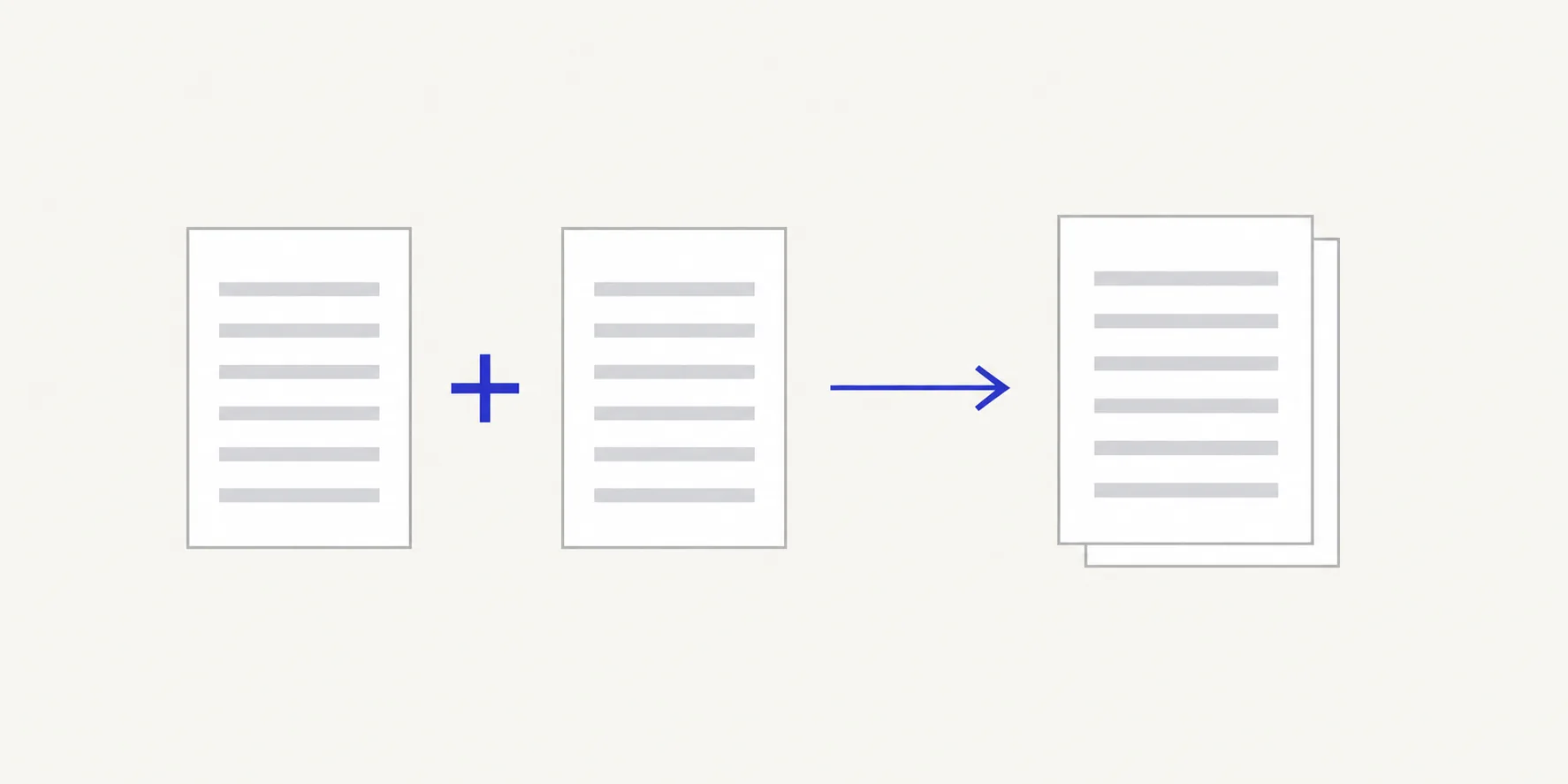
A merged PDF has more or fewer pages than you expected when a file was left unticked, added twice, or already had blank, duplicate or missing pages before the merge. Merge PDFs copies every page of every ticked file exactly once, so the total always equals the sum of the ticked files. Open Merge PDFs, compare the page total in the summary with your own count, fix the ticks and choose Merge PDFs again. Your source files are not changed.
How to find the missing or extra pages
- Write down the page count of each source PDF. Any PDF reader shows it, and Deckle shows it when you open the file.
- Add them up. That is the page count the merged file should have.
- Open Merge PDFs and choose Select files to add the sources.
- Read Files to merge. Every file you want must be ticked once, and nothing else.
- Compare the summary above the options, which shows the number of selected PDFs and their total pages, with your sum.
- Choose Merge PDFs. The result screen states the pages combined and the number of files, for example "17 pages combined from 3 PDFs".
- If the numbers still differ from what you expected, check the source files themselves (see below).
Common causes
| Merged file has | Likely cause | What to do |
|---|---|---|
| Fewer pages | A file was not ticked | Tick it and merge again |
| Fewer pages | A file was not added at all | Look for Some files were not added under the list; it names the file and the reason |
| More pages | The same file was added twice | Untick the extra copy |
| More pages | A source has blank pages from a duplex scan | Remove them in Organize PDF pages |
| The right number, wrong content | A different version of a file was added | Check the file name and first page of each source |
Merging never drops or adds pages on its own. If the total equals the sum of the ticked files but is still not what you wanted, the difference is in the sources.
Check the sources, not just the merge
A source PDF can surprise you in three ways.
Blank or near-blank pages. Scans of single-sided paper often include blank backs. A 10-page letter scanned on both sides gives 20 pages. Remove the blanks before merging; remove pages before merging shows the workflow.
Pages counted differently. A document with a cover and contents pages may be printed "1" on PDF page 3. If you counted from the printed numbers, your expected total will be short by the front matter. Count positions in the file instead.
Duplicates inside a file. A page saved twice in the source appears twice in the merge. Find it in Organize PDF pages, open the copy's ⋯ menu and choose Remove.
Example: you expect 4 + 6 + 2 = 12 pages, but the merged file has 14. The summary in Merge PDFs shows three selected PDFs and 14 pages, so the ticks are right. Opening the six-page file shows it now has eight pages, with two blank scan backs. Remove them, save, and merge the cleaned copy for 12 pages.
Files that will not go in
Merge PDFs only accepts PDF files. An image or a Word document is not added, and Deckle tells you which file and why. Convert images first with JPG to PDF or PNG to PDF.
A password-protected PDF has to be readable before it can be merged. Make an unlocked copy with Unlock PDF using the password you were given, then add that copy. Merge a password-protected PDF explains the steps.
Tips
- Write the expected total before you start. It turns "looks about right" into a check you can make in a second.
- Use the summary line. The selected PDFs and page total update as you tick files, so you can catch a missing file before you merge.
- Check the end of each file. Missing pages are usually the last page of a section, such as a signature page.
- Merge the corrected sources rather than patching the result if you will build the same packet again.
Frequently asked questions
Can merging lose pages?
No. Merge PDFs copies every page of each ticked file. A shorter result means a file was unticked, not added, or shorter than you thought.
Why does my merged PDF have blank pages?
They were in one of the source files, usually from double-sided scanning. Remove them in Organize PDF pages.
The page count is right but a page is missing. How?
Another page took its place, for example a duplicate in one file and a missing page in another. Check the thumbnails of each source against the merged file. If the pages are all there but out of sequence, see merged PDF pages in the wrong order.
Can I merge only some pages of a file?
Not directly. Extract the pages you want with Split PDF first, then merge that file.
Related tools
- Merge PDFs to combine whole files and see the page total before you merge
- Organize PDF pages to remove blank or duplicate pages from a source
- Split PDF to take out only the pages you need