Organise pages
Merge, split, extract or delete: which PDF tool do you need?
By DeckleUpdated
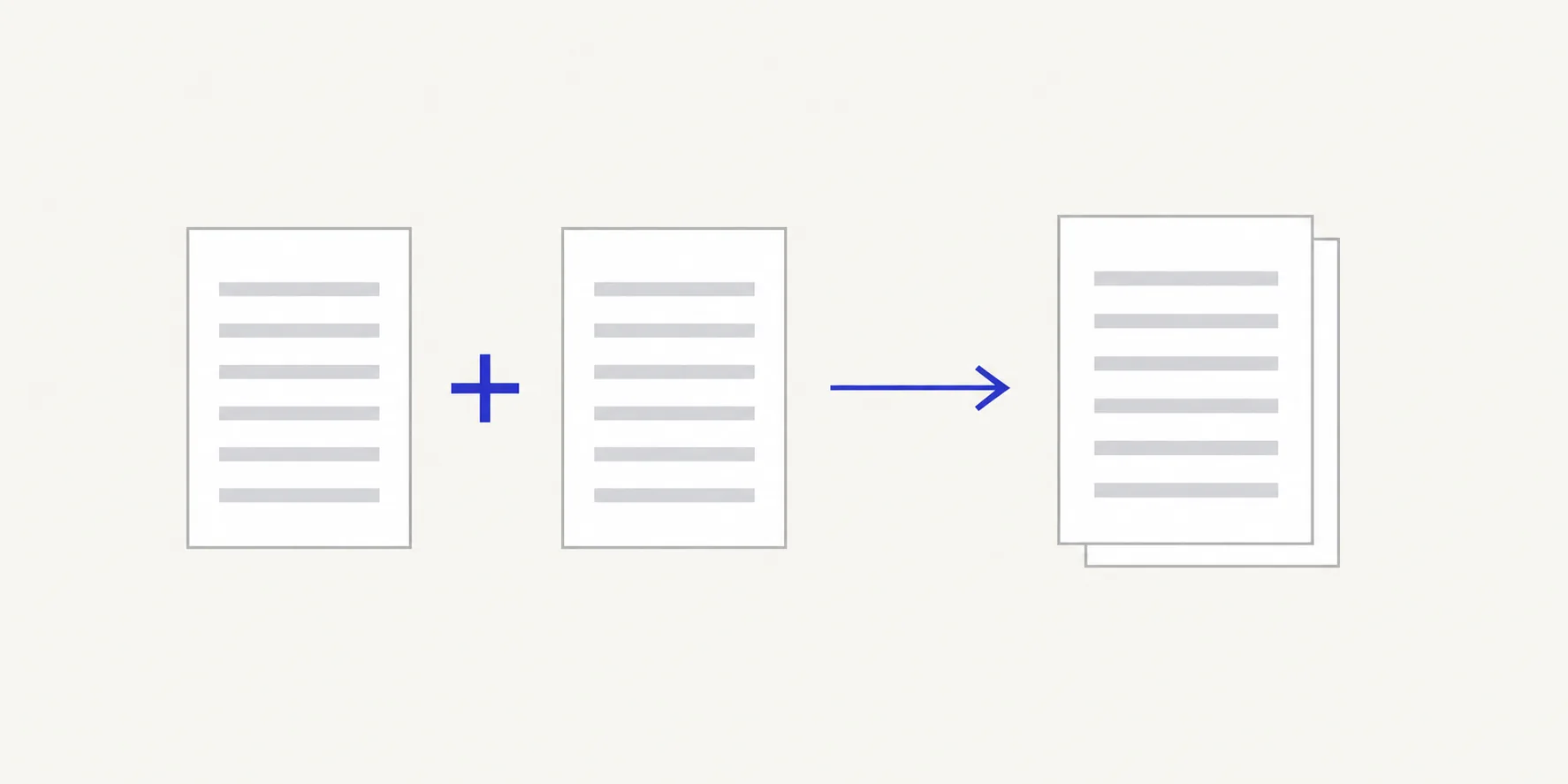
Merge, split, extract and delete are four different page jobs, and the right one depends on what you want to end up with. Use Merge PDFs to turn several files into one, Split PDF to turn one file into several, and Organize PDF pages to delete, reorder or keep only some pages of a single file. Extracting pages is done with Split PDF for a range, or Organize PDF pages for scattered pages. Every one of them makes a new file and leaves the original unchanged.
Which tool do you need?
| You have | You want | Use |
|---|---|---|
| Several PDFs | One combined PDF | Merge PDFs |
| One PDF | Several smaller PDFs | Split PDF |
| One PDF | A new file with one section, such as pages 5–12 | Split PDF, one range |
| One PDF | A new file with scattered pages, such as 2, 7 and 9 | Organize PDF pages, remove the others |
| One PDF | The same document without some pages | Organize PDF pages, remove them |
| One PDF | The same pages in a different order | Organize PDF pages, move them |
| Several PDFs, one with pages out of order | One combined, correctly ordered PDF | Fix that file in Organize PDF pages, then merge |
The question to ask is how many files you start with and how many you want at the end. Merge goes many to one, split goes one to many, and Organize PDF pages goes one to one.
Merge: many files into one
Merging places whole files one after another, in the order of the list.
- Open Merge PDFs and choose Select files.
- Tick the files in Files to merge and put them in order.
- Choose Merge PDFs.
Merging does not reorder pages inside a file, and it cannot take only some pages from a file. If a source needs fixing, fix it first. How to merge PDF files in the right order has the full steps.
Split: one file into several
Splitting cuts one PDF into separate files. Split PDF has four modes under How to split it: Choose split points, One file per page, Fixed-size chunks and Page ranges I choose.
- Open Split PDF and choose the PDF.
- Pick a mode and set the split points, chunk size or ranges.
- Choose the action button, such as Create 3 PDFs, and download the files one at a time or as a ZIP.
With page ranges, a page can appear in more than one file, and pages outside every range are left out. The planned files list tells you about both before you click. See how to split a PDF by page range.
Extract: keep some pages as a new file
Extracting means making a new file from part of a document while keeping the full original. Deckle has two ways to do it, depending on whether the pages sit together.
- A continuous section, such as a chapter on pages 14–31: in Split PDF, choose Page ranges I choose and enter one range. You get one PDF with just those pages.
- Scattered pages, such as pages 2, 7 and 9: in Organize PDF pages, remove every other page and choose Save pages. Split PDF would give you three separate files instead of one.
Example: a 40-page contract needs the signature pages 38–40 sent to a solicitor. One range, 38 to 40, gives a three-page file. If the solicitor also needs the cover, page 1, use Organize PDF pages and keep pages 1, 38, 39 and 40.
How to extract pages from a PDF walks through both.
Delete or reorder: change one file
Organize PDF pages works on a single file. Select a page and choose Remove to take it out, drag thumbnails to change the order, or choose Turn left, Turn right or Duplicate. All changes are saved together when you choose Save pages.
Delete or extract? Both remove pages from what you end up with. Delete when you want the document minus a few pages. Extract when you want a few pages as their own file. If the removed pages might be needed later, keep the original; Deckle never overwrites it. How to delete pages from a PDF and how to reorder pages in a PDF cover each job.
Combining jobs
Many tasks need two steps in a row:
- Insert pages into the middle of a document: merge, then move the new pages in Organize PDF pages, or split and merge the parts. See how to insert pages into a PDF.
- Build a packet from parts of several files: split or extract each file, then merge the extracts.
- Clean up before merging: remove blank pages in each file, then merge.
Tips
- Count pages before and after. Merging should add up the sources; splitting with ranges that cover the document once should add up to the original.
- Use page positions, not printed numbers. The cover and contents pages move the two apart.
- Do all edits to one file in a single pass. Organize PDF pages removes, moves, turns and duplicates together.
Frequently asked questions
Is extracting pages the same as splitting?
Almost. Splitting usually makes several files; extracting makes one file from a selection. In Deckle you extract a section with one range in Split PDF.
Can I merge only some pages of a PDF?
Not in one step. Extract the pages you need first, then merge the extracted file with the others.
Does deleting a page change the original PDF?
No. Organize PDF pages saves a new copy without the page and leaves the source as it was.
Should I merge first or reorder first?
Reorder inside a file before merging if you will reuse that file. For a one-off packet, merge first and fix the order of the combined file in Organize PDF pages.
Related tools
- Merge PDFs to combine several files into one
- Split PDF to cut one file into several or extract a range
- Organize PDF pages to delete, reorder, turn or duplicate pages