Organise pages
How to duplicate a page in a PDF
By DeckleUpdated
To duplicate a page in a PDF, open Organize PDF pages, select the page, choose Duplicate, then choose Save pages. The copy appears straight after the original, and you can move it anywhere in the document before saving. Deckle creates a new PDF with the extra page and leaves your original file unchanged.
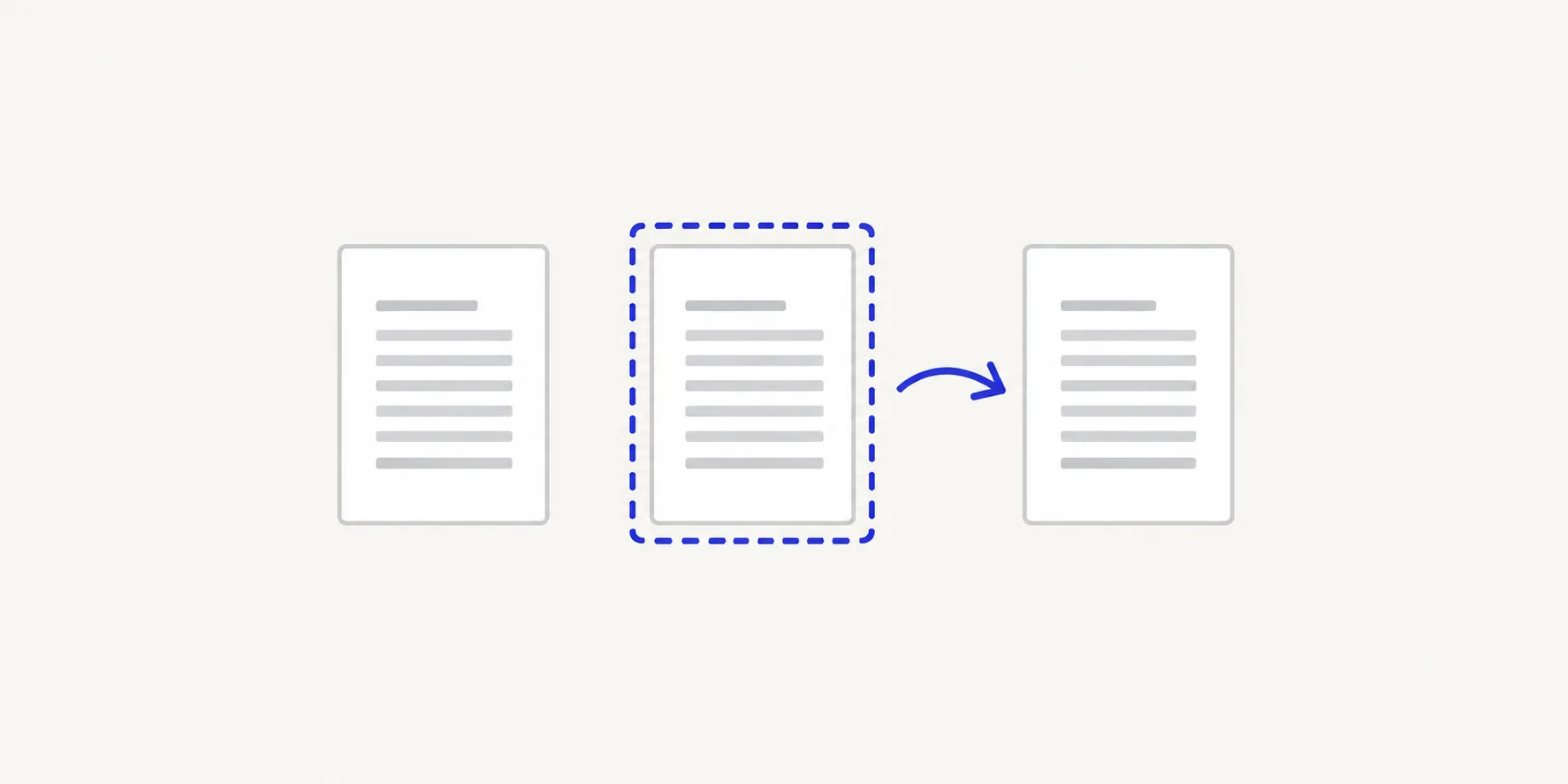
How to duplicate a PDF page with Deckle
- Open Organize PDF pages and choose your PDF, or drop it onto the page. Every page appears as a thumbnail.
- Find the page you want to copy. To read it at full size, select it and switch the page layout to Single page.
- Open the page's ⋯ menu and choose Duplicate. The copy is inserted directly after the original and selected for you.
- To put the copy somewhere else, drag it, or open its ⋯ menu and choose a move option, such as Move to position….
- Repeat for any other pages you need to copy.
- Choose Save pages. The button stays disabled until you have changed something, and says "Reorder, duplicate, turn or remove a page first."
- Download the new PDF and check the page count.
The result screen tells you how many pages are in the new PDF. It should be the original count plus one for every copy you made.
When a duplicate page is useful
- A form that needs filling in twice. A timesheet or an inspection sheet printed once per week or per room. Duplicate the blank form as many times as you need.
- A cover or separator between sections. Repeat a divider page in front of each chapter of a training pack.
- A reference page at both ends. Put a map, a key or a contact sheet at the start and the end of a long document, so readers can find it either way.
- A printing set. Make two copies of a single-page certificate or label sheet in one file, ready to print double.
Copy several pages at once
To copy a group of pages, such as a two-page form, select them together: tick the checkbox on each thumbnail, or hold Shift, Command or Ctrl while you click. A toolbar appears above the grid. Choose its duplicate button, and each selected page is copied, with every copy placed straight after its own original.
Example: a four-page booklet has a two-page sign-up form on pages 3 and 4. Selecting both and duplicating gives the order 1, 2, 3, 3, 4, 4. If you want the two forms to stay together as a pair, open the ⋯ menu for the copy of page 3 and choose Move to position…, then enter 5. The order becomes 1, 2, 3, 4, 3, 4: two complete forms one after the other.
To make many copies of one page, duplicate it, then duplicate the copy, and so on. Each copy is identical to the page you copied, including any turn you have already given it.
What a duplicate contains
A duplicate is a copy of the whole page as it is in the PDF: text, images, scans and anything printed on it. A few things don't change with it:
| On the original | On the copy |
|---|---|
| Printed page number in the footer | The same number, unchanged |
| Rotation you applied in this session | The same rotation |
| Marked as removed | Not removed; the copy is kept |
Because printed numbers are copied too, a duplicated page 7 still says "7". If the numbers matter, they have to be changed in the source document before you export the PDF.
You can turn, move or remove a copy independently of its original. Select it and use the same controls as for any other page.
Fix mistakes before you save
- Undo and Redo step through every change, including each duplicate.
- To get rid of one copy, select it and choose Remove.
- Reset pages clears every change and returns to the original pages.
The summary line counts how many pages are kept, removed, duplicated and turned, which is a quick check before you save.
Tips
- Duplicate first, then reorder. Make all the copies, then put them in place. How to reorder pages in a PDF covers moving pages to an exact position.
- Copy from another PDF with Merge PDFs. Organize PDF pages works within one file. To bring a page in from a different PDF, see how to insert pages into a PDF.
- Do other page edits in the same pass. The same screen removes and rotates pages, so you can delete a blank and duplicate a form before saving once. See how to delete pages from a PDF.
- Expect a larger file. Each copy adds a page, so the file grows a little.
Other ways to duplicate a PDF page
- Adobe Acrobat. In the paid desktop app, choose All tools > Organize pages, hover over the page thumbnail and select More > Copy. Then select the gap between thumbnails where the copy belongs and choose Paste from the context menu. Adobe describes the free Acrobat Reader as a viewer and lists editing and organising PDFs under its paid plans.
Frequently asked questions
Where does the duplicated page go?
Directly after the page you copied. Move it anywhere else by dragging it or with the move options in its ⋯ menu before you save.
Can I duplicate a page into another PDF?
Not in one step. Save the page as its own PDF with Split PDF, then add it to the other document with Merge PDFs.
Does duplicating a page reduce its quality?
No. The copy is the same page content, so text stays selectable and images keep their resolution.
How many times can I duplicate a page?
As many as you need. Each copy is a separate page in the new PDF, and a very long document takes longer to save.
Related tools
- Organize PDF pages to duplicate, move, rotate or remove pages
- Split PDF to save one page as its own file
- Merge PDFs to add pages from another PDF